Help
How to sign in.
Pick who you are. Each part shows the screens you’ll see, one step at a time.
Families, adaptive instructors and staff instructors
Sign in with a code, no password.
- Go to usarc.org/account, or tap Sign in at the top of any page.
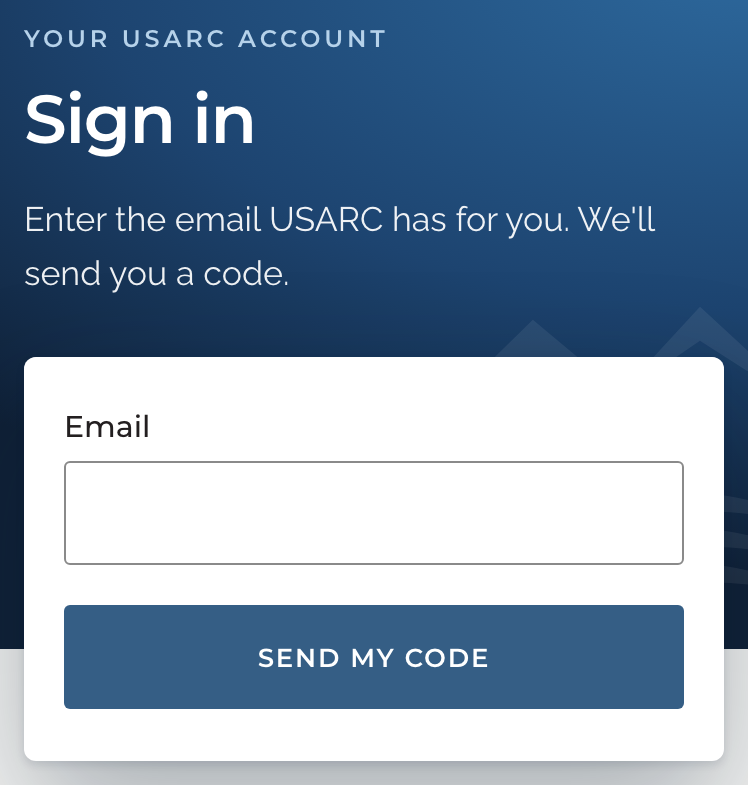
- Enter your email and tap Send my code.
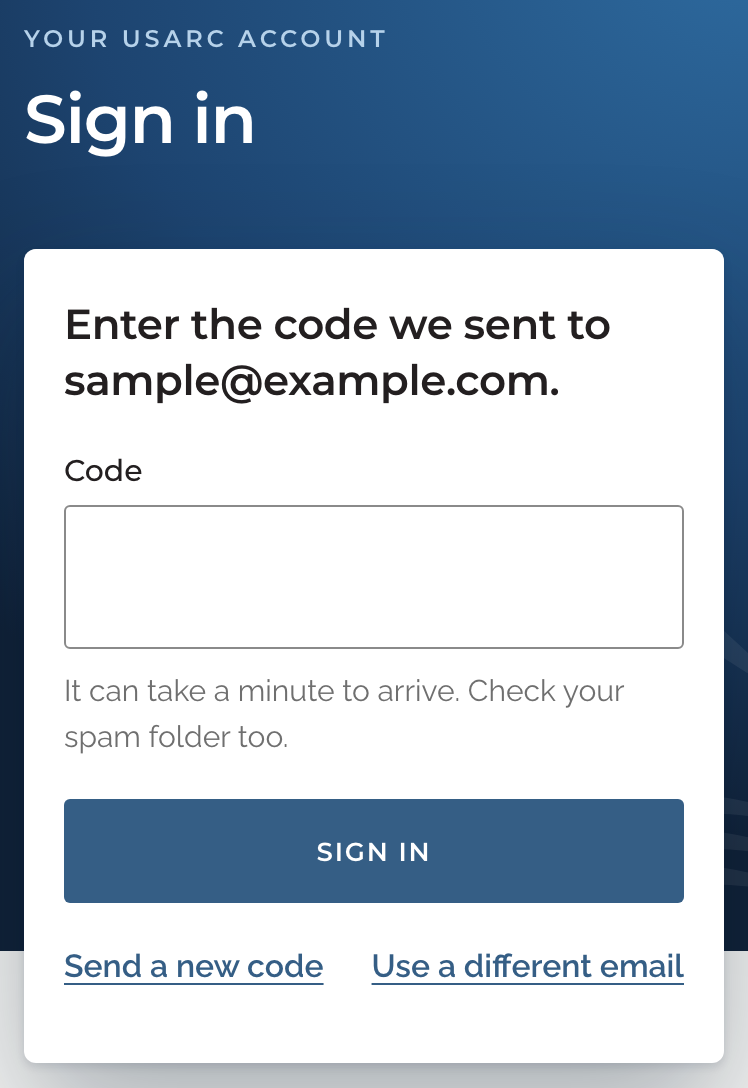
- Check your email for a code from USARC. Type it in and tap Sign in. It can take a minute to arrive, so check your spam folder too.
- Families
- Use the email on your registration form.
- Adaptive instructors
- Use the email on your adaptive instructor application.
- Staff instructors
- Use your USARC email, the one the office has for you.
There’s nothing to set up and no password to remember. You get a new code each time you sign in.
Families
Your participant’s page.
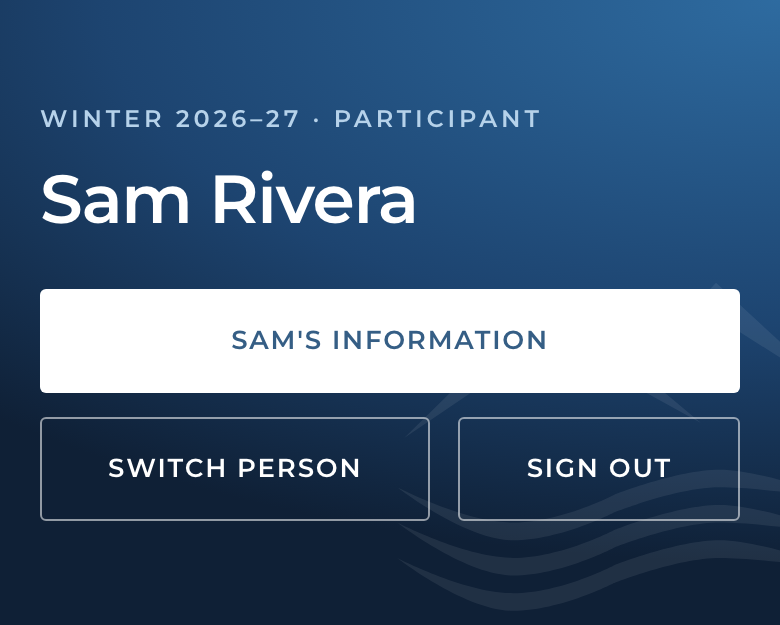
Once you’re in, you land on your participant’s page, with their lessons, waivers, payment method and information. Registered more than one person? Tap Switch person to pick who you’re here for.
Signed in but don’t see your participant? You may have used a different email on the form. Tap Sign out and try that one, or call the office at (909) 584‑0269.
Adaptive instructors
Your training and lesson days.
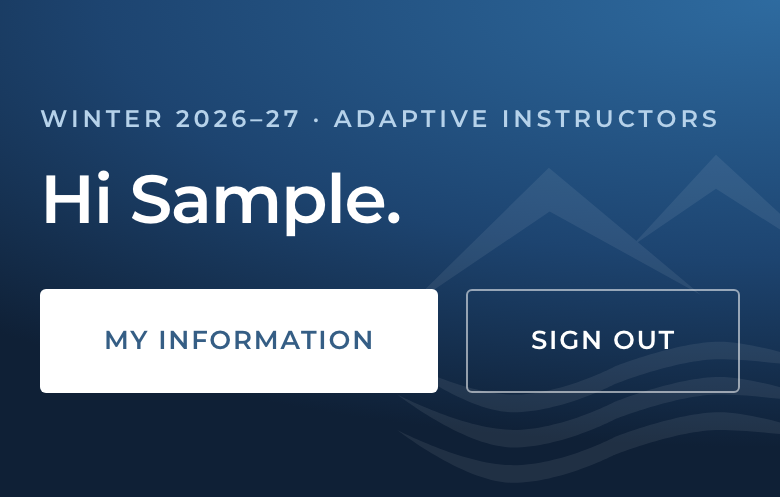
You land on your own page, with your training, the lesson days you’ve signed up for and My information.
The personal link in your USARC emails still works too. It opens the same page without a code.
Staff instructors
Your schedule, clock and days off, on your phone.
Sign in with your USARC email as above. Your page shows today’s shift at the top and your next two weeks below it.
Clock in and out
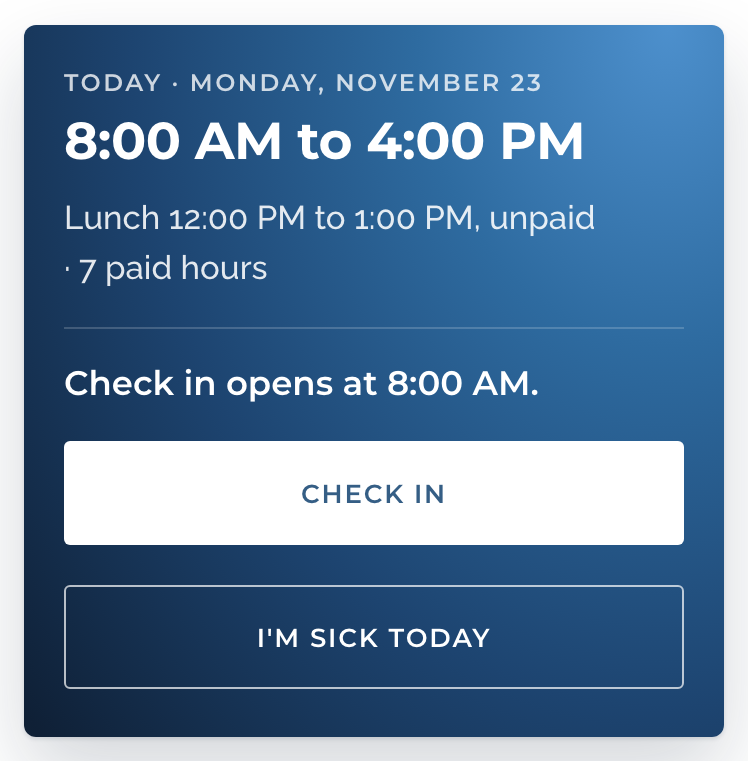
- Check in opens at the start of your shift, not before.
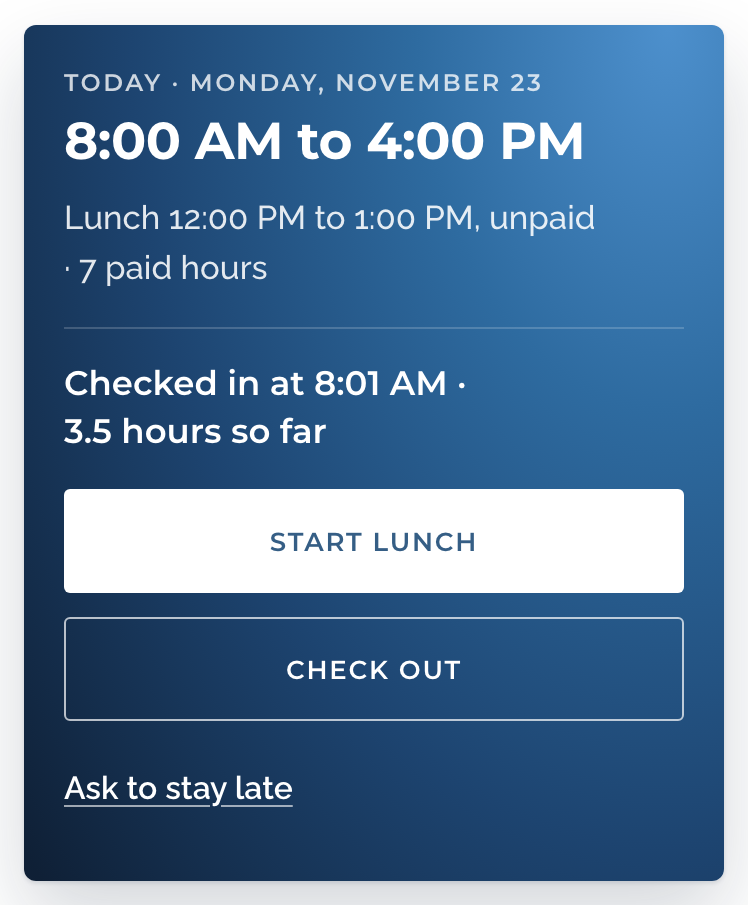
- Tap Start lunch when you go and Back from lunch when you return.
- Tap Check out when you leave. Forget, and you’re checked out at the end of your shift and the office is told.
Stay late
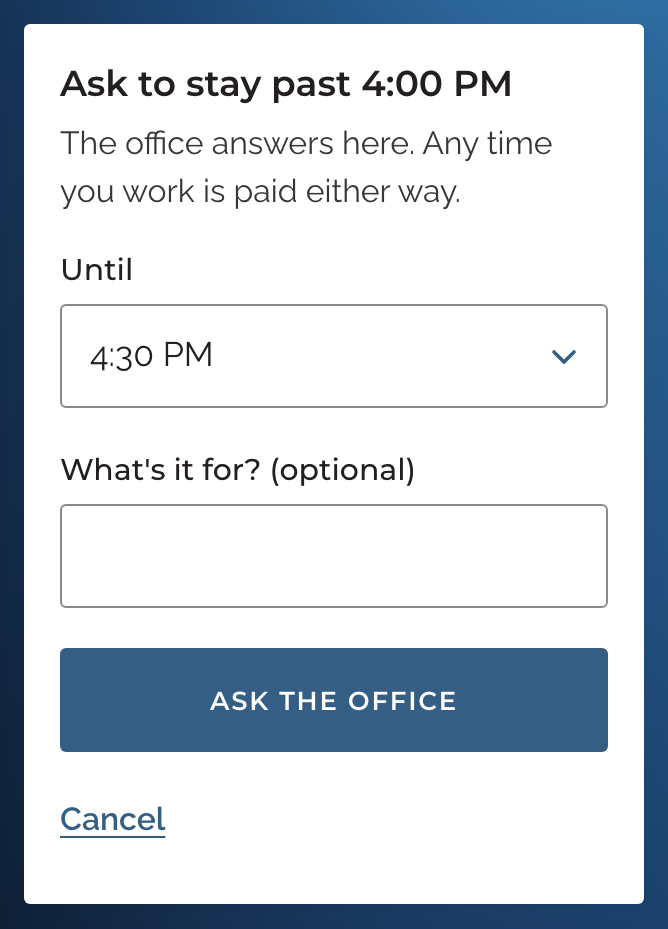
Need to stay past your end time, say for a big group? Tap Ask to stay late, pick a time and tap Ask the office. The office answers right there. Any time you work is paid either way.
Call in sick
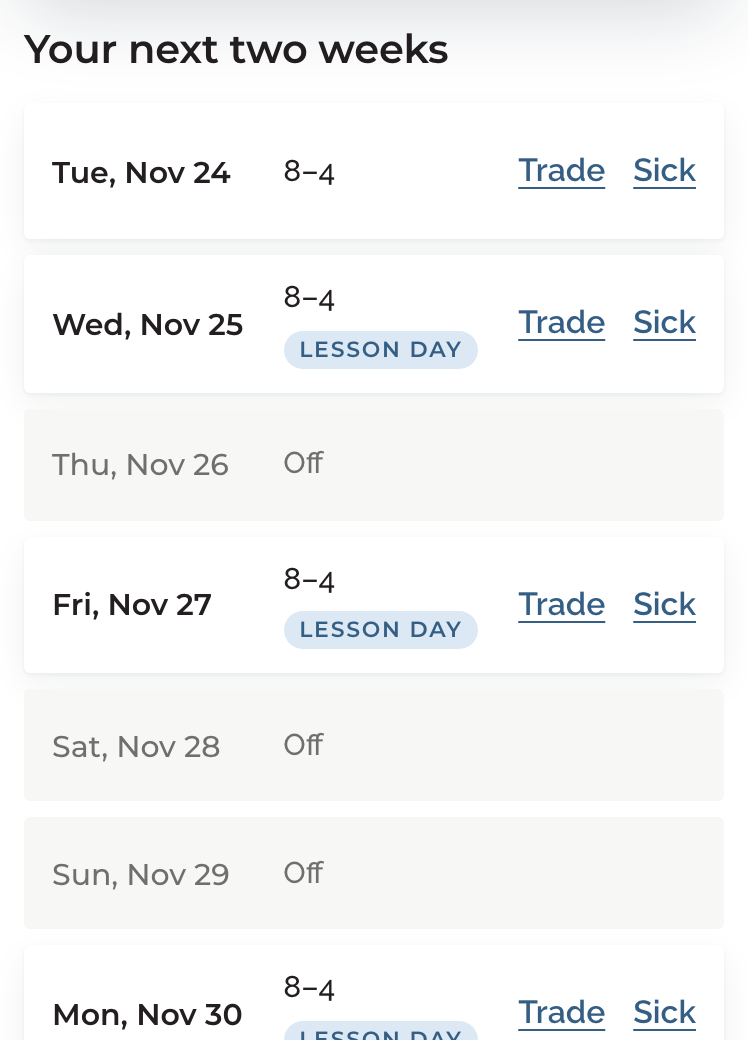
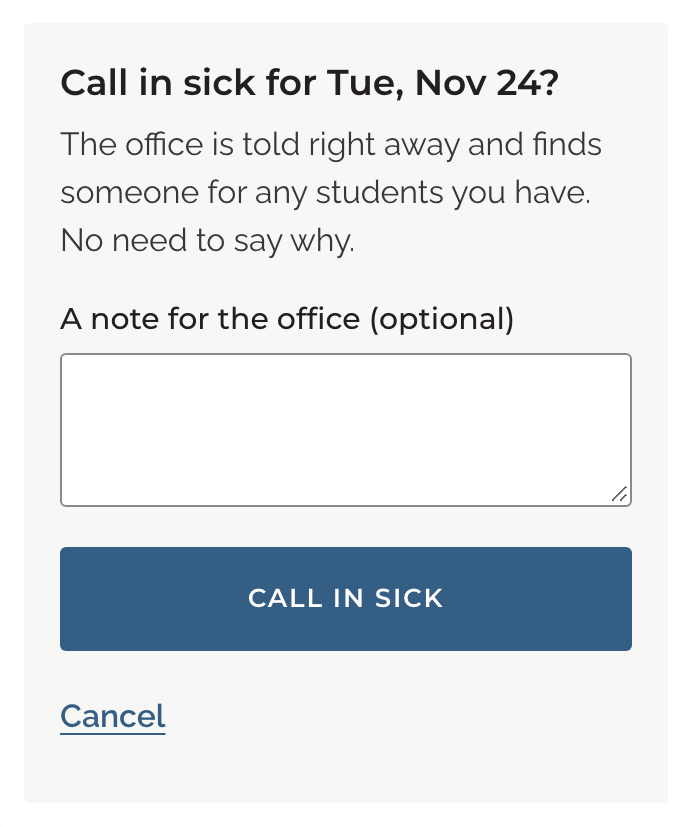
In Your next two weeks, tap Sick next to the day, or I’m sick today for today. Add a note for the office if you like, then tap Call in sick. Nobody will ask why. The office is told right away and covers your students.
Already checked in? Call the office instead.
Trade a day
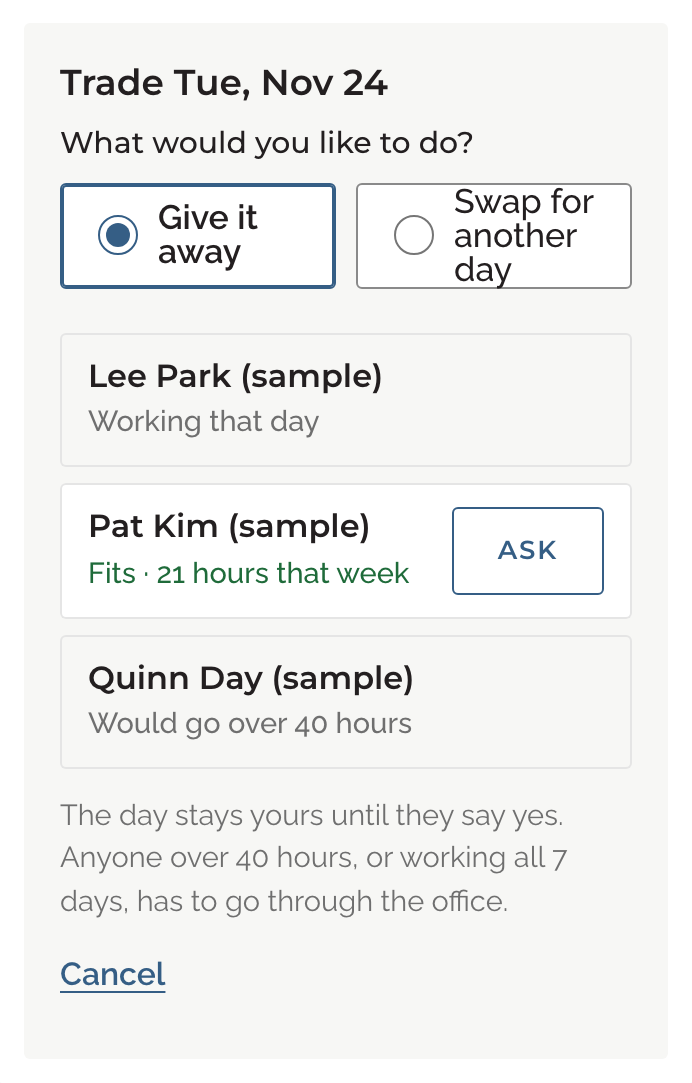
Tap Trade next to a day you work. Choose Give it away or Swap for another day and you’ll see which coworkers it fits. Tap Ask next to one. The day stays yours until they say yes.
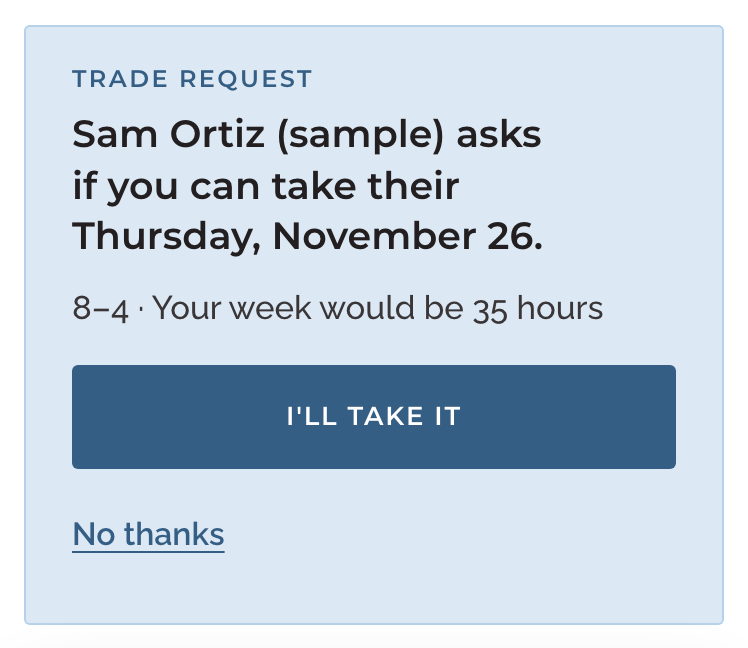
When a coworker asks you, their request shows at the top: tap I’ll take it or No thanks. A trade that would put anyone over 40 hours, or on all 7 days, goes through the office.
Office staff and clinicians
The office app uses a password.
- The first time, open the Set your password email from USARC and tap its link. Choose a password. The link works once and only for a few weeks.
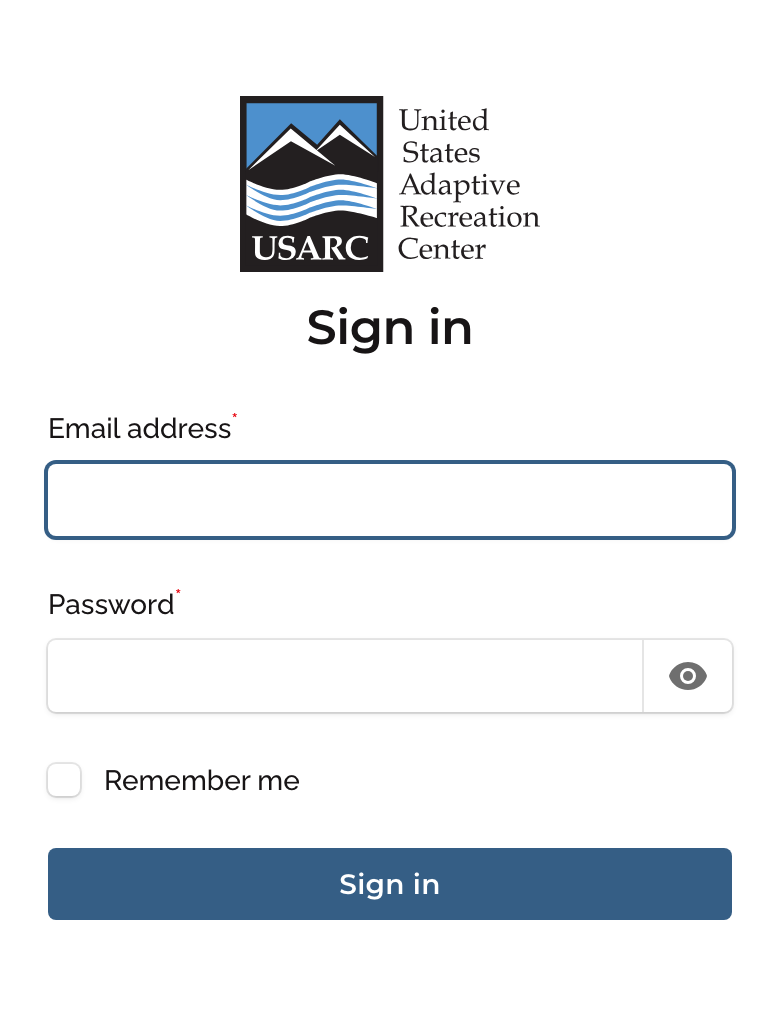
- After that, go to app.usarc.org, enter your email and password and tap Sign in. Tick Remember me on a computer only you use.
- Forgot your password, or the link ran out? Reply to the Set your password email, or call the office at (909) 584‑0269, and you’ll get a new link.
Staff instructors with an office sign-in use it the same way. Your schedule and time clock are on usarc.org, as above.
Still stuck?
The office can help.
Call (909) 584‑0269, Monday to Friday, 9:00 AM to 5:00 PM Pacific, or contact us.
Quick fixes
- No code? Wait a minute and check your spam folder, then tap Send a new code.
- Typed the wrong email? Tap Use a different email on the code screen.
- Nothing under your email? Try the one you registered or applied with. Families often use more than one.