Help · Families
Your participant’s page, step by step.
Lessons, waivers, payment and information, with a picture of each screen.
What’s on your page
One page for each person you registered.
Sign in at usarc.org/account with the email on your registration form. Here’s what’s on a participant’s page, top to bottom:
- Still needed lists anything the office is still waiting on.
- Lesson shows the days the office reserved, with check-in times.
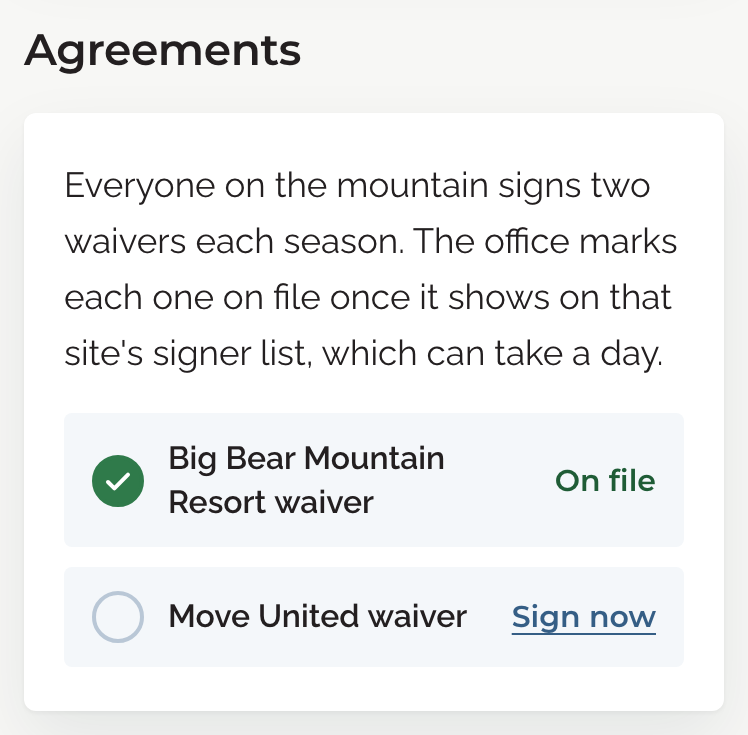
- Agreements shows the two waivers to sign each season.
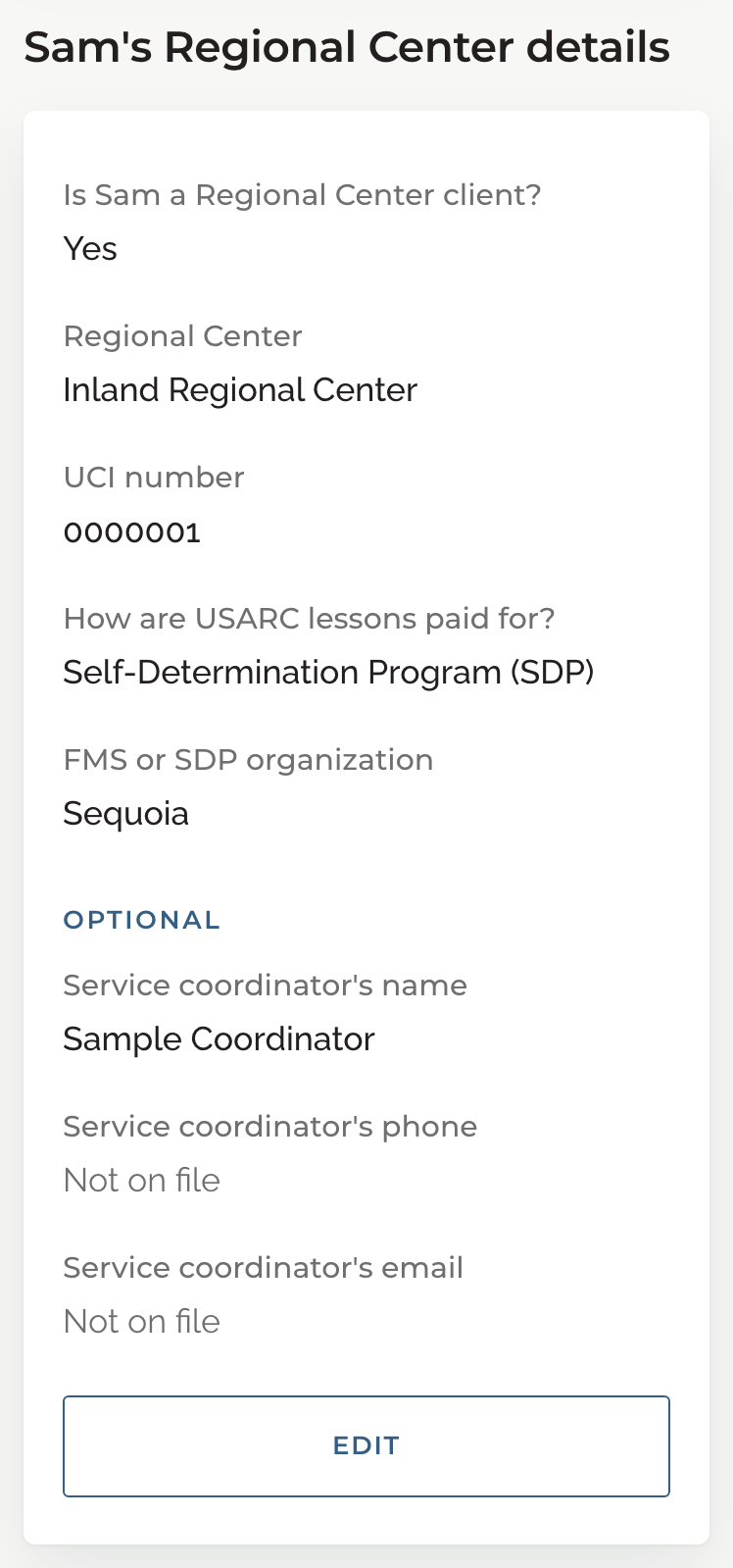
- Regional Center details holds the Regional Center answers, for a client.
- Payment method holds the card or bank account on file, and your fees.
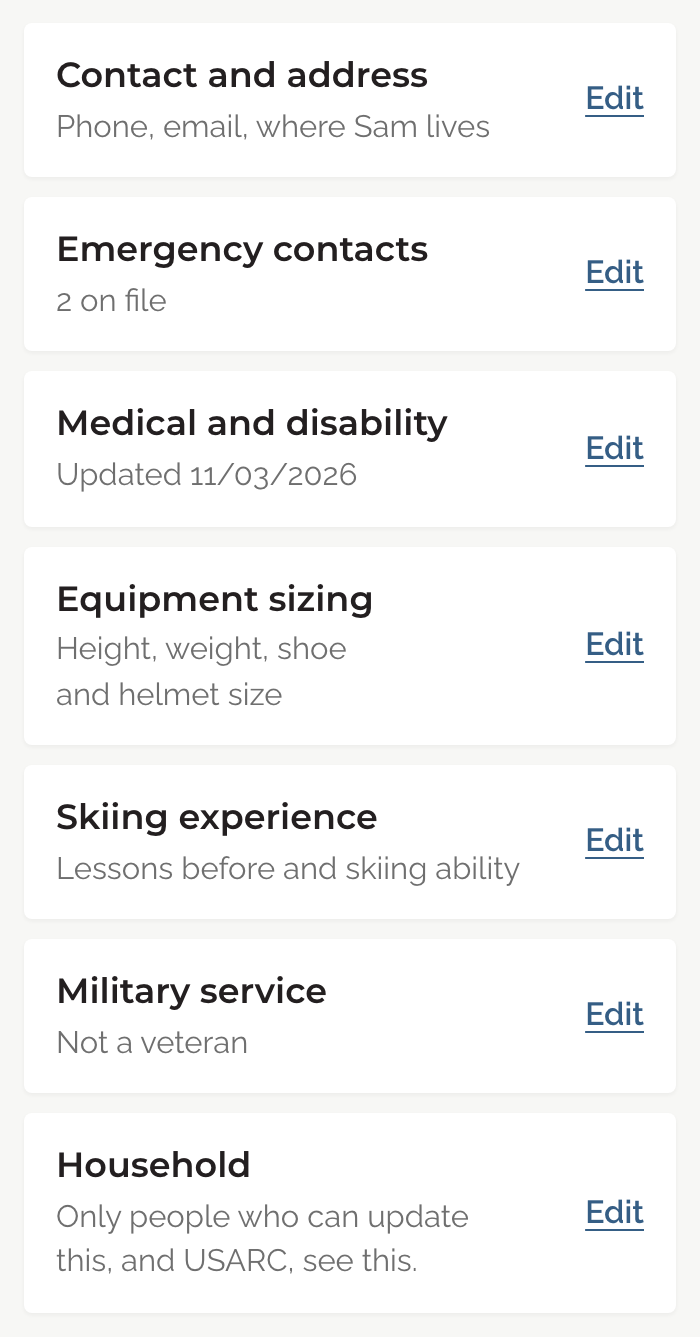
- Information has contact, emergency, medical and the rest, a section at a time.
- Who can see lists everyone who can see this person, and adds someone.
- While the Founding Members campaign is open, a band at the top invites you to join the Ascent Plan. Tap Not now to shrink it, and See it again to bring it back.
- Came with a group this season? A box says what the group’s leaders and caregivers can see.
Added as See only? You see the lesson, the waivers and the information, with View where others see Edit. To change something, ask someone who can update it, or call the office at (909) 584‑0269.
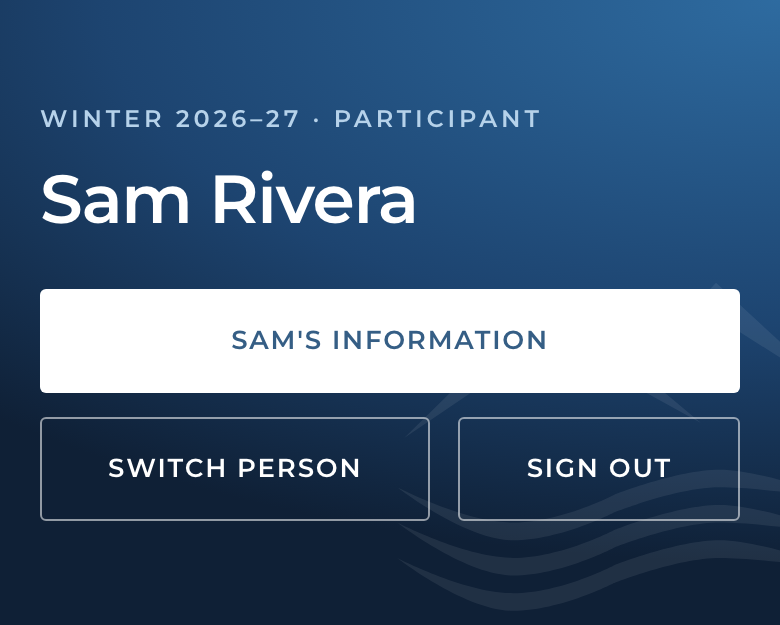
How to switch between people
- Registered more than one person? After you sign in, Who are you here for? lists each one.
- Tap the card of the person you’re here for. Its Open line names them.
- To see someone else, tap Switch person at the top of the page and pick again. Changed your mind? The Back to link under the list takes you back.
- Also an adaptive instructor? Myself opens your instructor page.
- Registering someone new? Tap Start the winter form under the list.
Signed in but don’t see your participant? You may have used a different email on the form. Tap Sign out and try that one, or call the office at (909) 584‑0269.
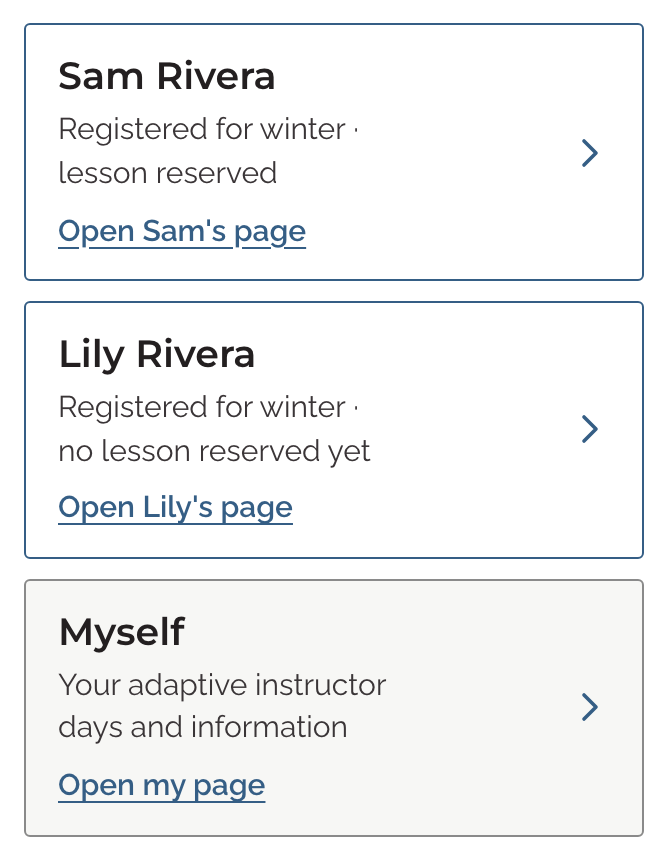
Still needed
What the office is waiting on.
How to finish what Still needed asks for
- Still needed, at the top of the page, lists what the office is waiting on for this person, in the office’s own words.
- Tap an item. It takes you to the card that has it: Agreements for a waiver, Regional Center details, or Payment method.
- Do what that card asks. Each one has its steps further down this page.
- An item goes once the office has it. When nothing is left, Still needed goes too.
Only people who can see and update this person see Still needed.
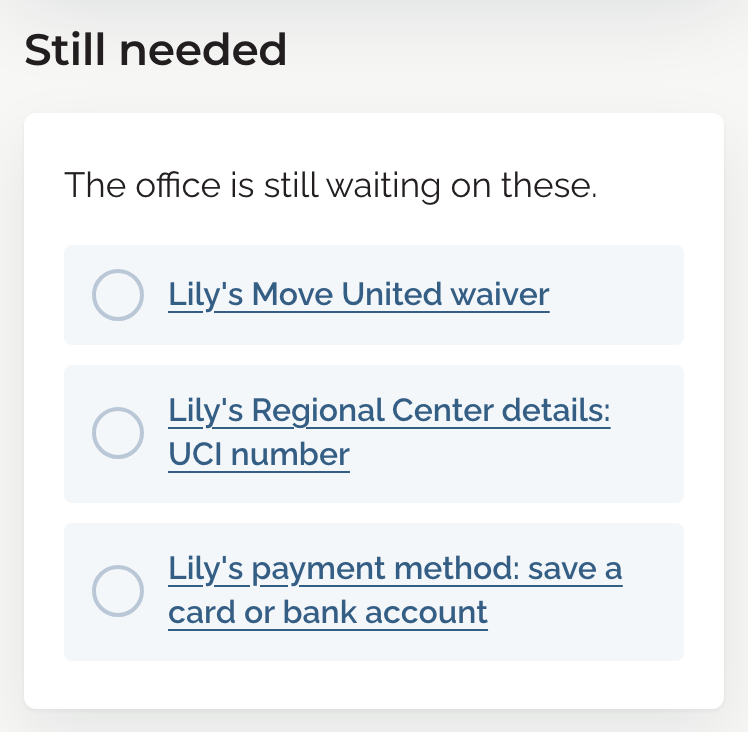
Lessons
Your lesson days and times.
How to read your lesson
- Lesson shows each day the office reserved, marked Reserved: the date, morning, afternoon or full day, the kind of lesson and the resort.
- Check in, Lesson and Finish are the times, all Pacific. Check in at the USARC office.
- No times yet? The card says the office will confirm your check-in time.
- Need to change or cancel? Call the office. Reservations are made by phone too: with nothing reserved, the card has a Call the office button.
- Came with a group? You see Your group’s lesson days. Check with your group leader which days you’re coming.
Once a lesson day is over, it comes off the card.
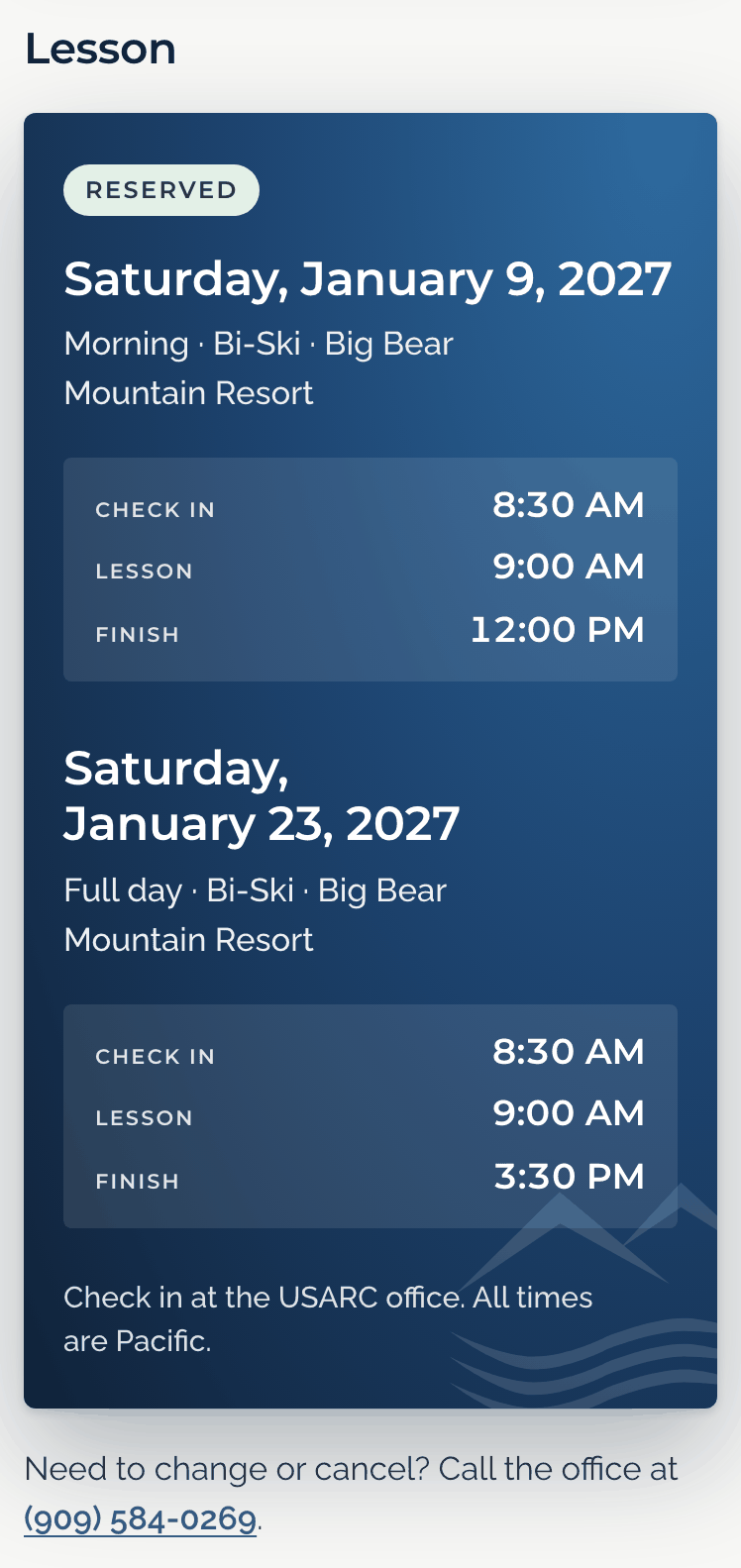
Information
Keep it current for the office.
How to update information
- Tap the button at the top that ends in information, or scroll down to the information list.
- Tap Edit beside a section, like Contact and address or Medical and disability.
- Change what’s needed, then tap Save changes. Cancel leaves it as it was.
- You’ll see Saved. A medical change also tells the office: Saved. The office has been told.
Changed a phone number? It asks whether USARC may text it. Answer Yes or No, then save.
How to change the email you sign in with
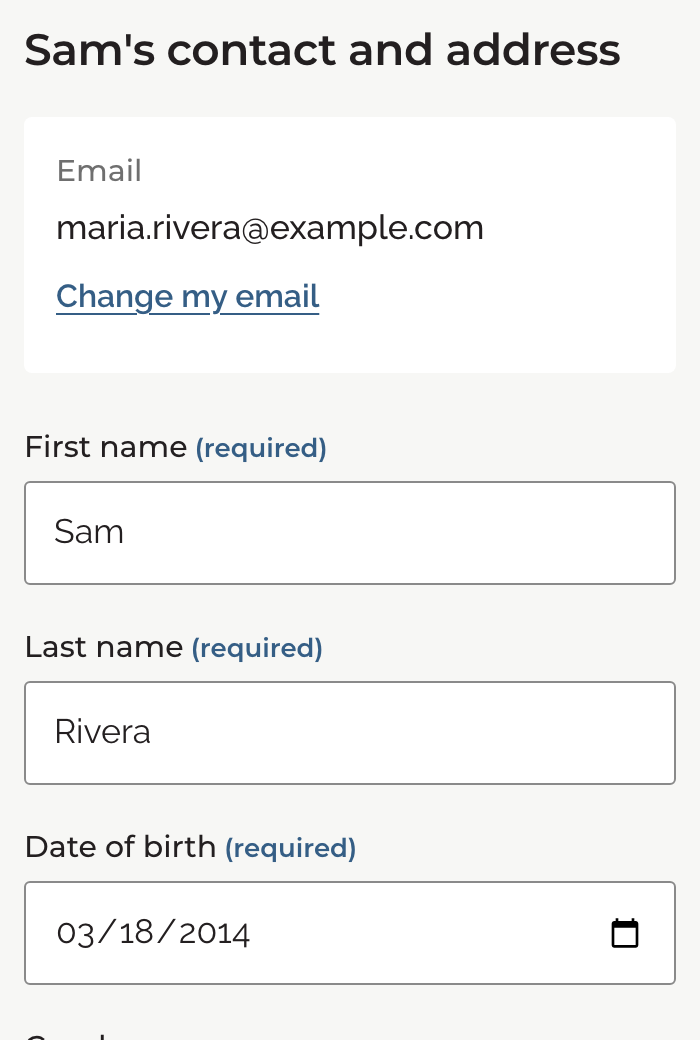
- Tap Edit beside Contact and address.
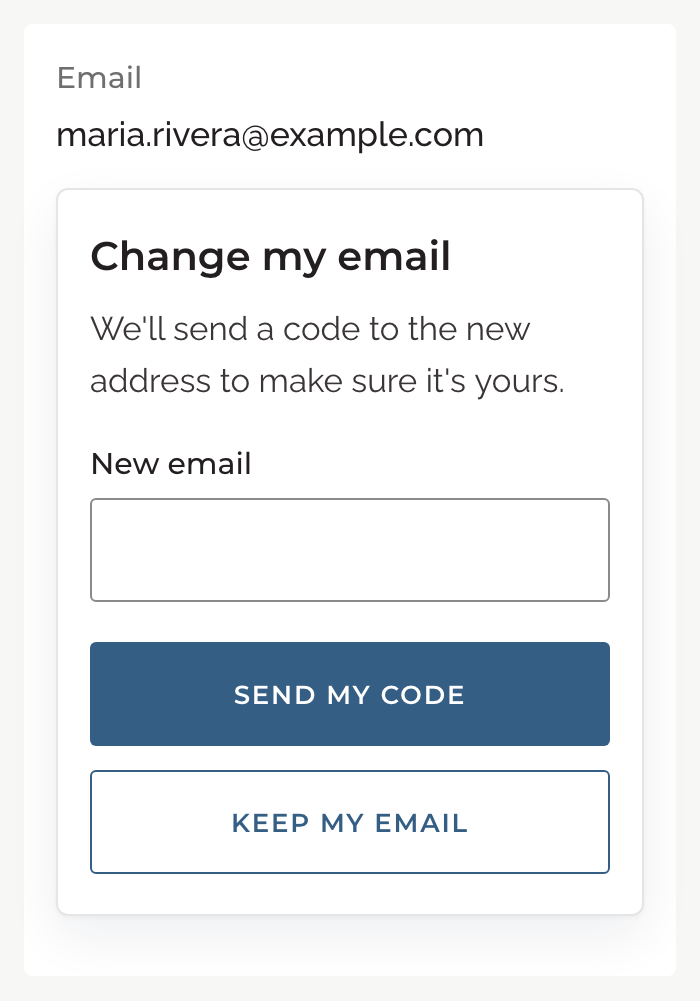
- Under Email, tap Change my email.
- Type the New email and tap Send my code.
- Type the code that arrives there and tap Confirm.
- The page says your email is now the new one. Sign in with it from now on.
No Change my email? Only the person who filled in the registration can change it. The page says who, or to call the office.
Who can see
Share the page with family or a caregiver.
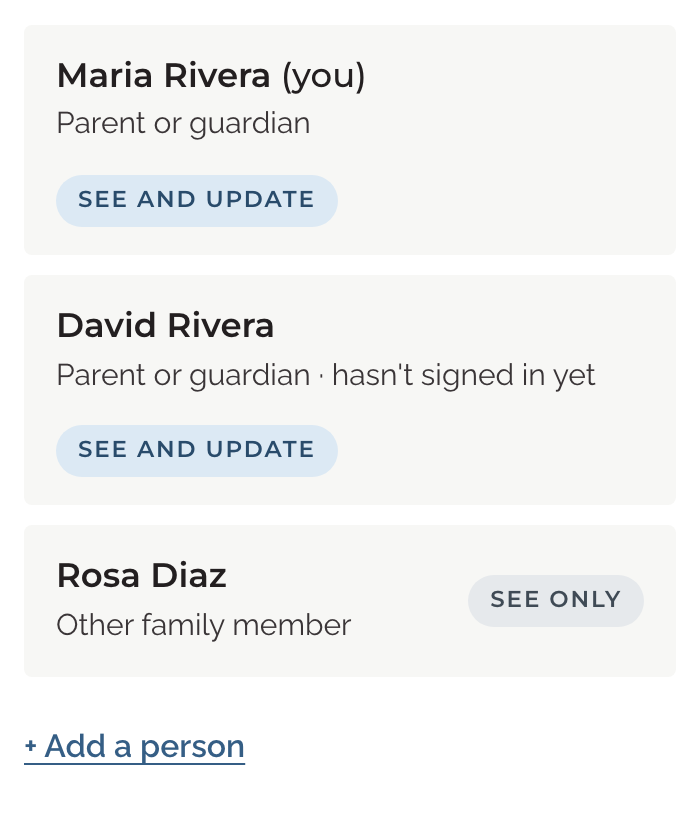
Each person signs in with their own email and sees only the person they were added to. See and update can edit the information, the payment method and this list. See only can read the lesson, waivers and information, and never sees the payment card.
How to add someone
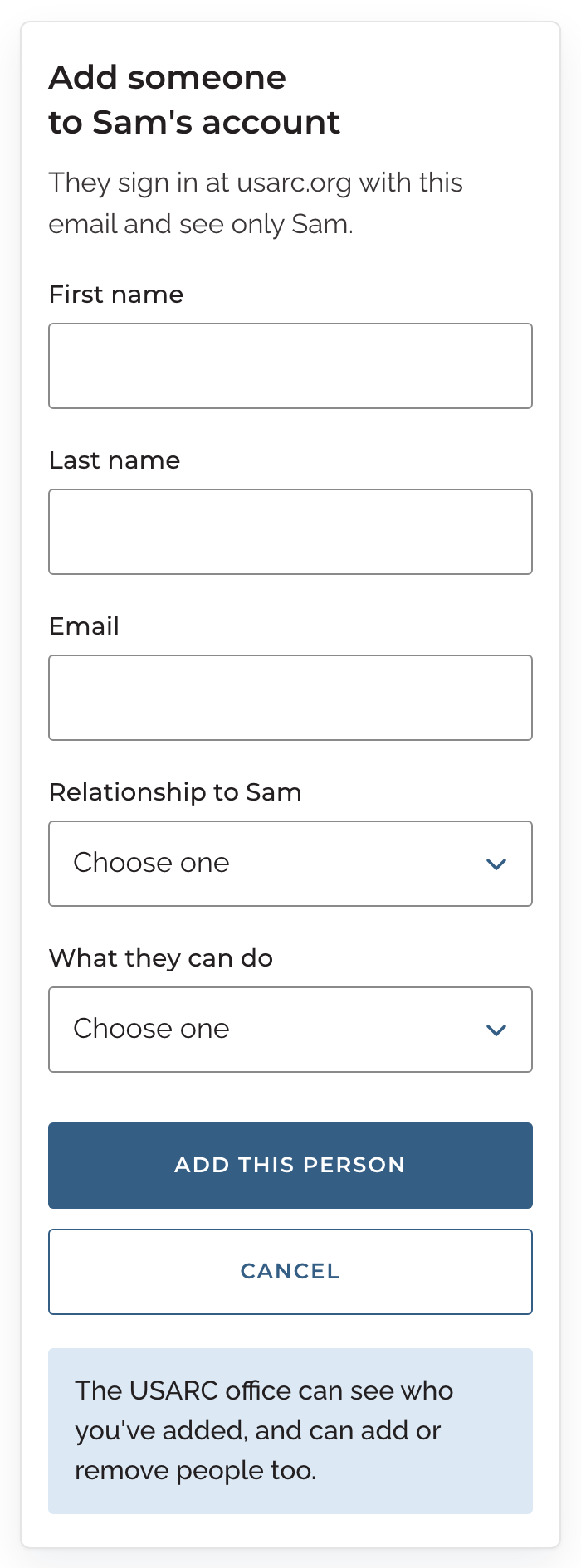
- Under Who can see, tap + Add a person.
- Fill in their name, Email and relationship, and pick What they can do.
- Tap Add this person. Once you type a first name, it shows that name instead.
- Their access starts the first time they sign in at usarc.org with that email. USARC doesn’t email them, so let them know.
The office can see who you’ve added, and can add or remove people too.
How to change what someone can do, or remove them
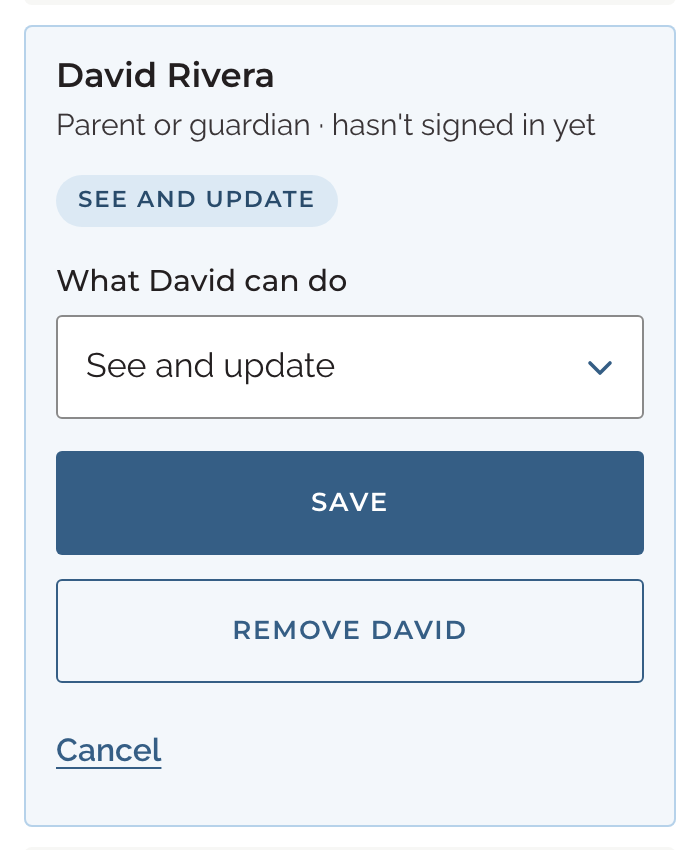
- Tap the person in the list.
- Under What (their name) can do, pick See and update or See only, and tap Save.
- To take them off, tap Remove and their name, then Remove again to be sure. Keep leaves them on.
hasn’t signed in yet beside a name means they haven’t used their access yet.
Paperwork
Waivers, Regional Center and payment.
How to sign the waivers
- Under Agreements, tap Sign now beside a waiver that isn’t on file yet.
- It opens the resort’s or Move United’s own site. Sign it there.
- The office marks it On file once it shows on that site’s list. It can take a day.
Both waivers are signed again each season.
How to update the Regional Center details
- Regional Center details shows for a Regional Center client, or a family that pays another way.
- Tap Edit, fill in what’s missing, like the UCI number, and tap Save changes.
- The service coordinator’s details, under Optional, can stay blank.
Regional Center pays for lessons? We still need a card or bank account on file to hold lesson reservations. We don’t charge it for lessons or a registration fee Regional Center covers. We do charge it the $10 reservation fee, and for a lesson missed without calling 48 hours ahead, since Regional Center can’t be billed for a lesson that didn’t happen.
How to add or replace the payment method
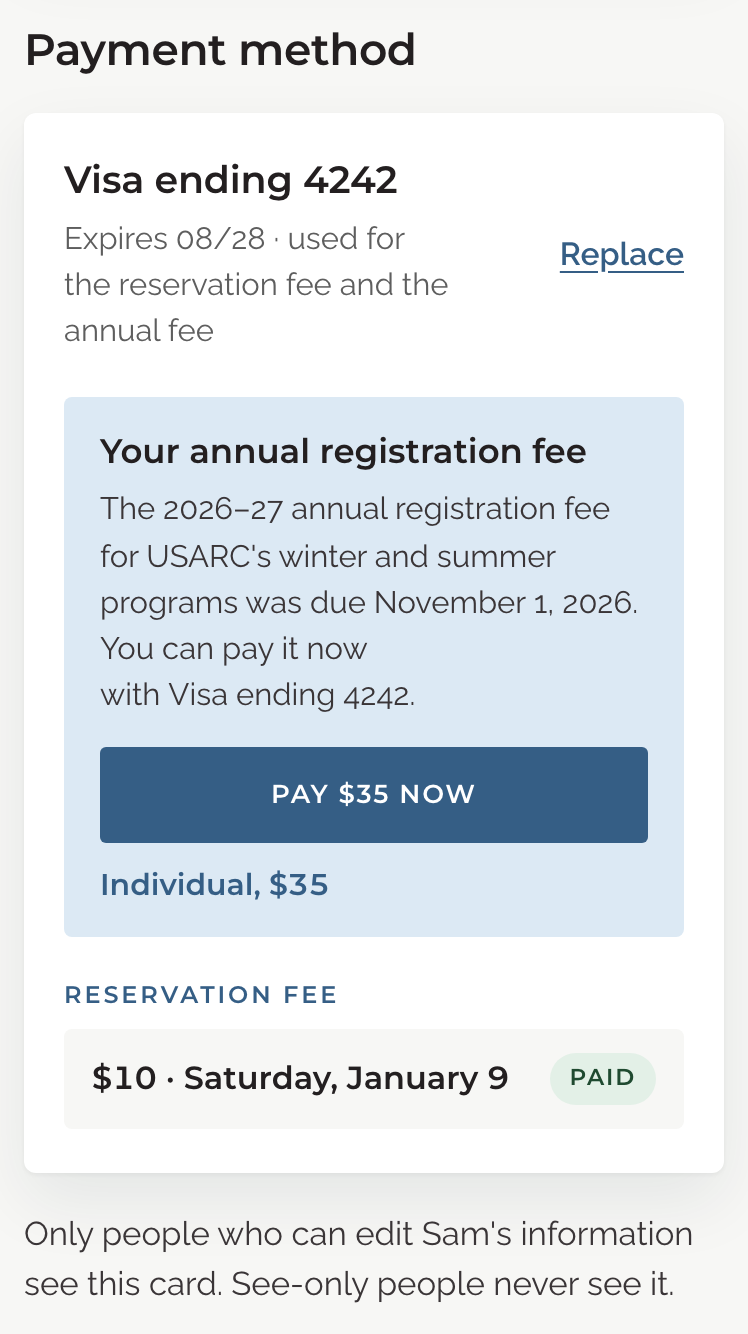
- Payment method shows the card or bank account on file, by its last four numbers.
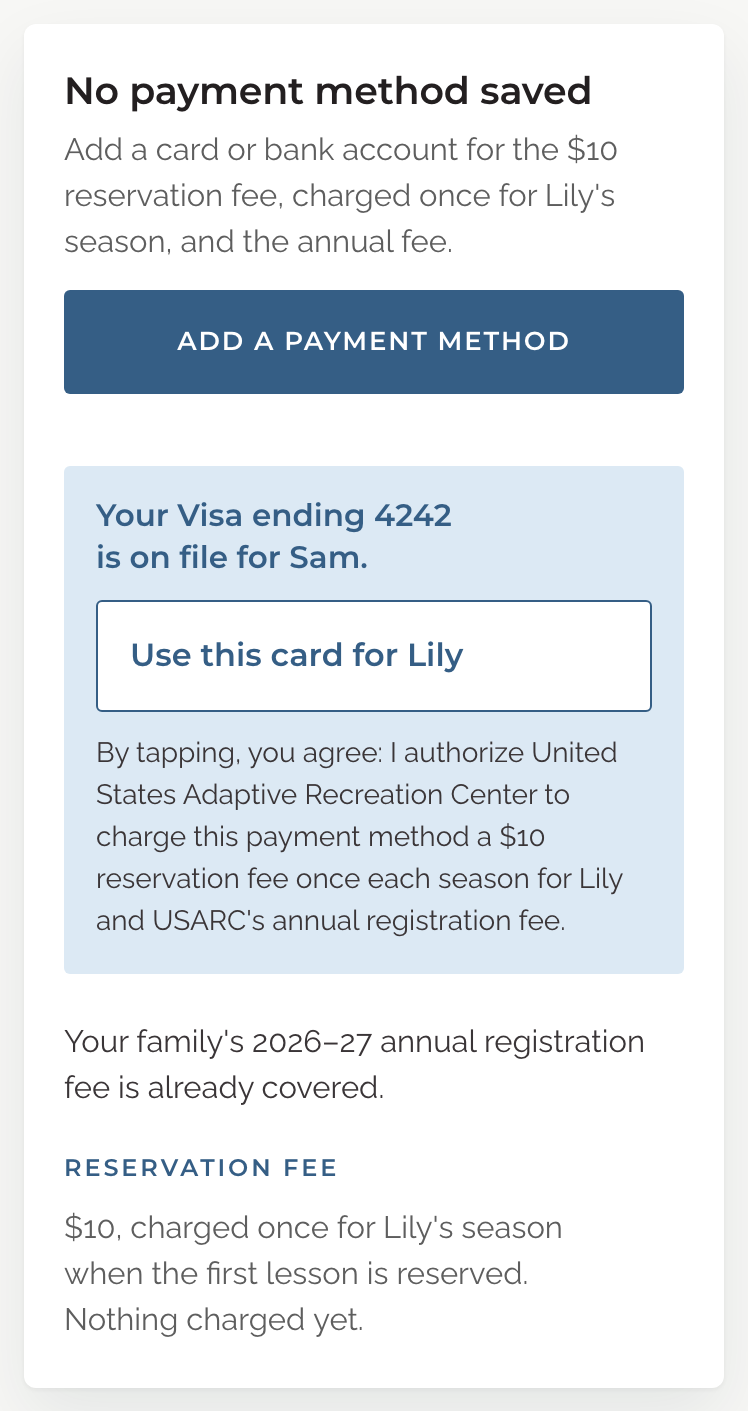
- Tap Add a payment method, or Replace to change it.
- Use one you saved before, or add a card or bank account in the secure form. Check the box to agree, then tap Save payment method.
- Already saved one for a brother or sister? Tap Use this card for and the name instead.
- It pays the $10 reservation fee, once a season when the first lesson is reserved, and the annual registration fee. When that’s due, tap Pay and the amount to pay it.
Only people who can see and update this person see this card. A bank account takes 1–2 days to confirm.
How to join the Ascent Plan in one tap
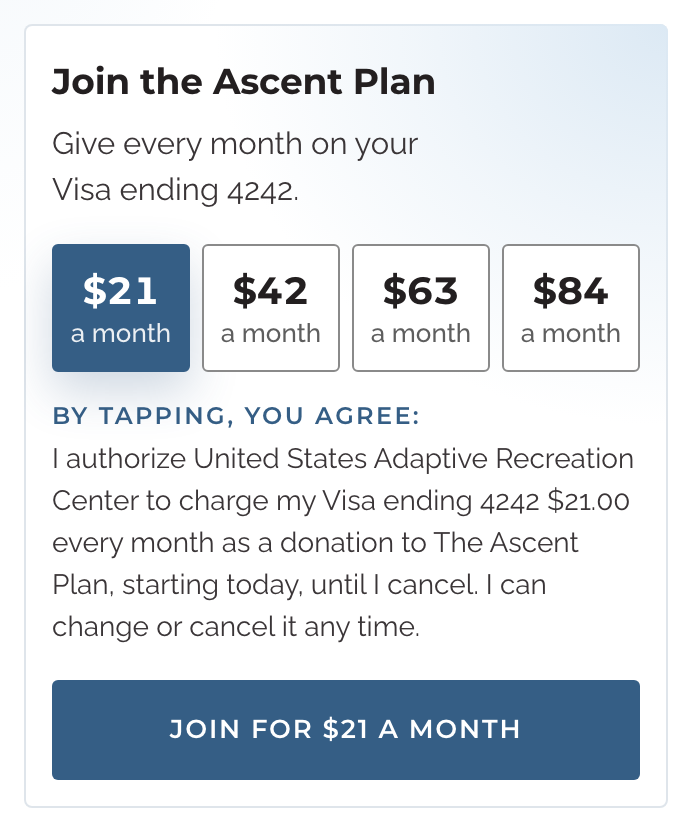
- With a card or bank account saved, Join the Ascent Plan shows in the Founding Members band at the top through December 31, then on the payment card. Tapped Not now? Tap See it again on the band at the top.
- Pick $21, $42, $63 or $84 a month, and read the sentence under By tapping, you agree.
- Tap Join for $21 a month, or the amount you picked. Your receipt comes by email.
To change or cancel, call the office at (909) 584‑0269.
Still stuck?
The office can help.
Call (909) 584‑0269, Monday to Friday, 9:00 AM to 5:00 PM Pacific, or contact us.
Quick fixes
- No code? Wait a minute and check your spam folder, then tap Send a new code.
- Typed the wrong email? Tap Use a different email on the code screen.
- Nothing under your email? Try the one you registered or applied with. Families often use more than one.