Help · Group leaders and caregivers
Your group’s page, step by step.
Your participants, their lessons and information, and who can see them, with a picture of each screen.
What’s on your page
One page for your group.
Sign in at usarc.org/account with a code, the same way families do. Use the email USARC knows you by:
- Group leaders
- The email the office has for you. USARC names each group’s leaders.
- Caregivers
- The email your group leader, or the office, added for you.
Here’s what’s on your group’s page, top to bottom:
- Participants lists everyone registered with your group this season, and opens their pages.
- Leaders and caregivers shows everyone who can see the group.
- + Add a caregiver adds someone to see the group. Group leaders only.
See We don’t have a registration or application with this email? Tap Use a different email and try the one USARC or your leader has, or call the office at (909) 584‑0269.

How to choose your group
- Your email reaches only your group? You land right on its page.
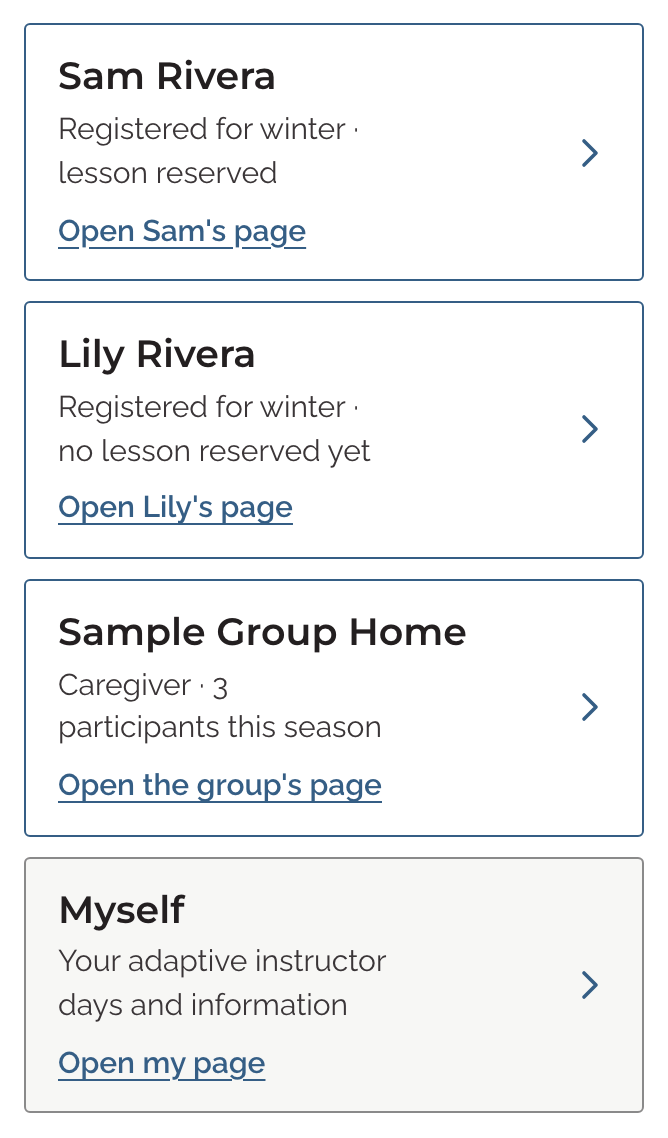
- Also a parent here, or an adaptive instructor? After you sign in, Who are you here for? lists each one.
- Tap your group’s card, the one that says Open the group’s page. It also says Group leader or Caregiver.
- To go somewhere else, tap Switch person at the top of the group’s page. Back to the group under the list takes you back.
- With more than one group, each has its own card.
Participants
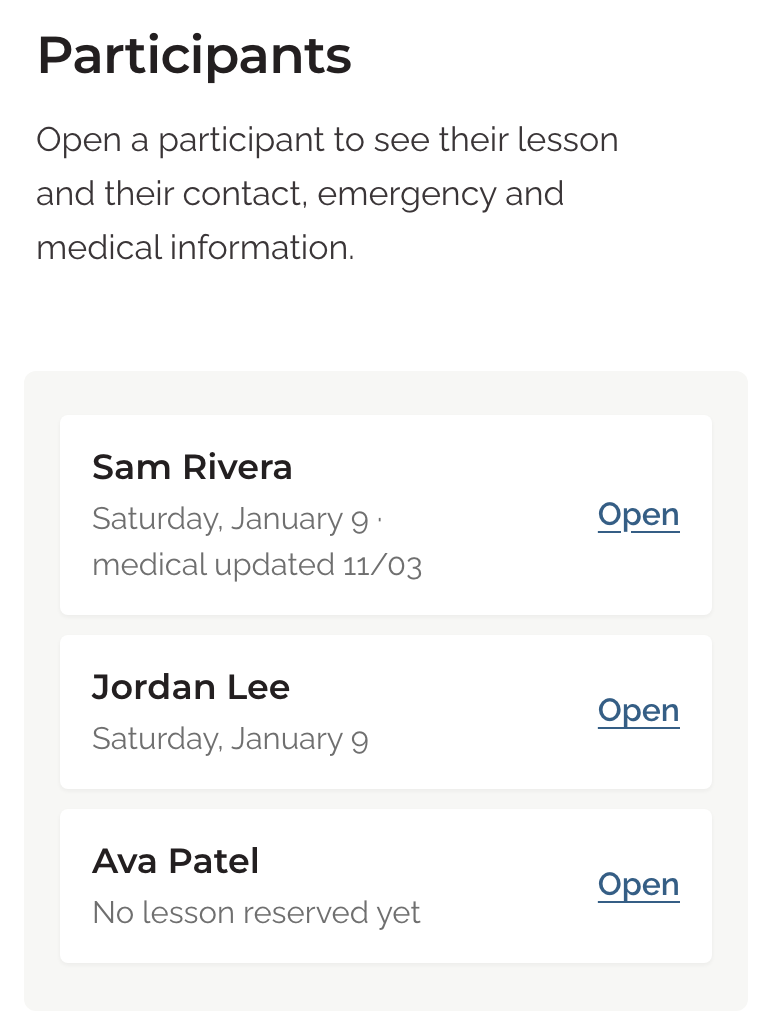
Everyone registered with your group.
Leaders and caregivers see the same list and the same pages. Nothing here can be changed, so look around freely.
How to read the participants list
- Participants lists everyone whose registration this season names your group, by last name.
- Under each name is their next lesson day, or No lesson reserved yet.
- medical updated and a date means their medical information changed then. Open them to read it.
- The top of the page counts them. With no one yet, it says no participants have registered this season.
Someone missing? A participant is on the list only when their registration form names your group. Call the office at (909) 584‑0269.
How to open a participant's page
- Tap Open beside a participant. Their page opens in place of the list.
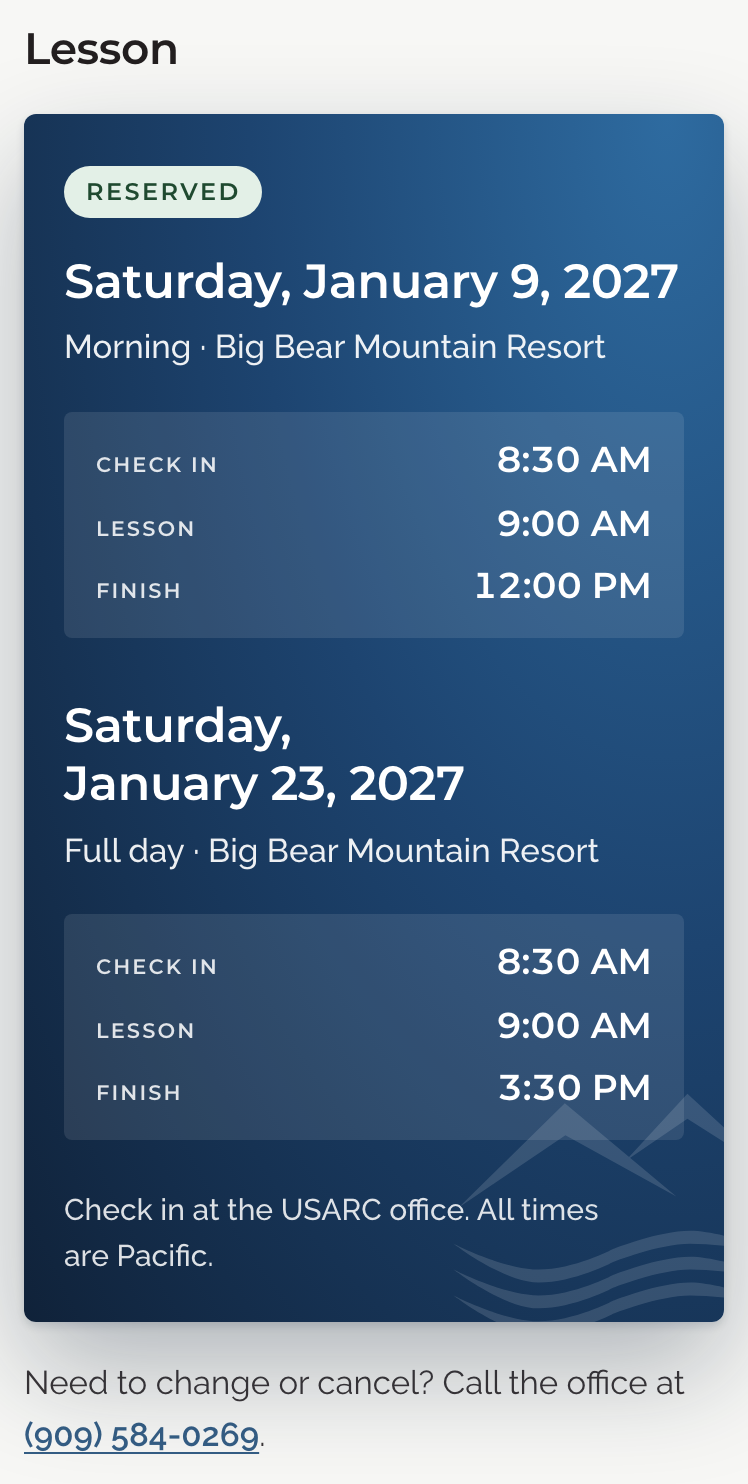
- Lesson shows each day the office reserved, with Check in, Lesson and Finish times, all Pacific. On the group’s days, it says The group’s lesson days.
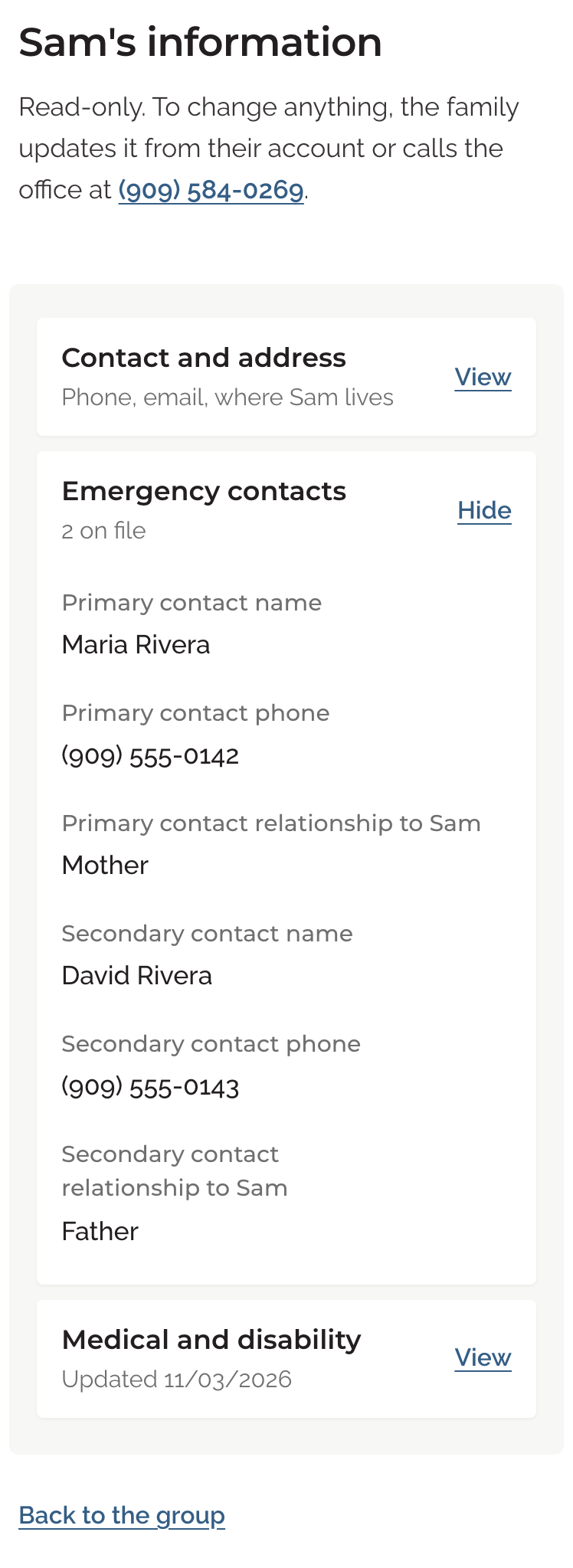
- Under their information, tap View beside Contact and address, Emergency contacts or Medical and disability. Hide closes it.
- Tap Back to the group to return to the list.
To change anything, the family updates it from their own account, or calls the office at (909) 584‑0269.
Leaders and caregivers
Who can see your group.
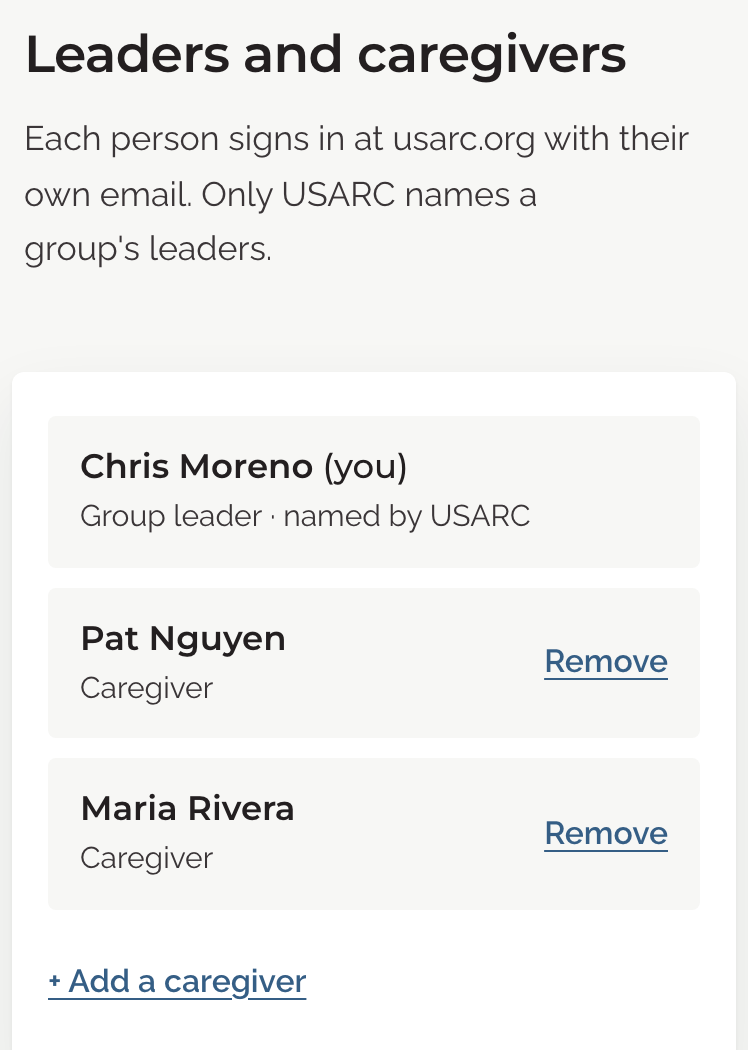
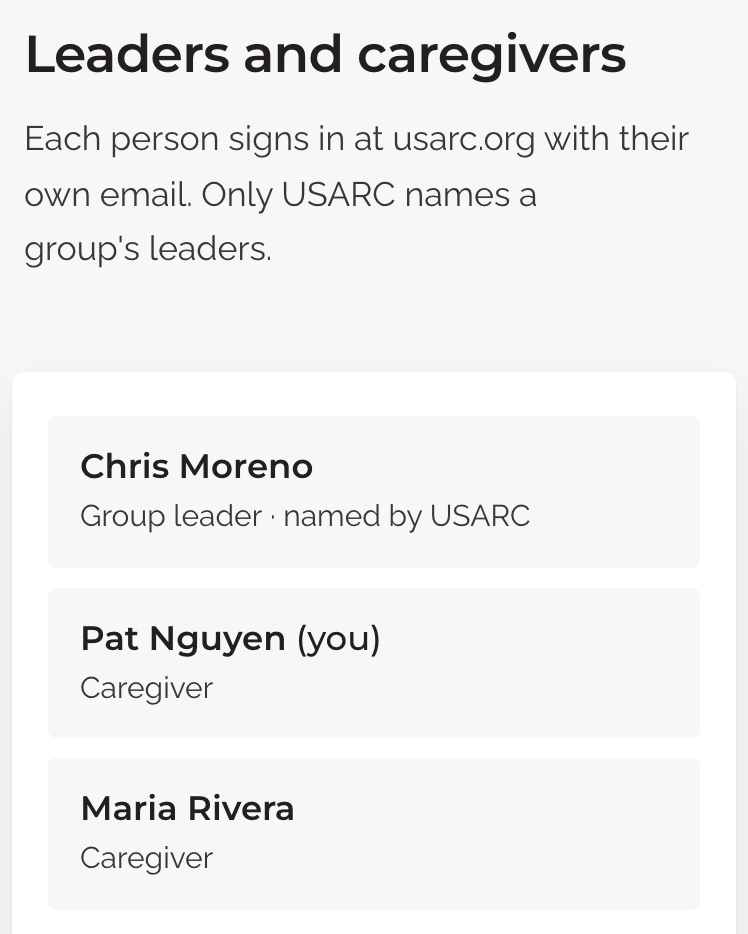
Each person signs in with their own email. Only USARC names a group’s leaders. A leader adds and removes caregivers, and a caregiver changes nothing.
How to see who else can see the group
- Leaders and caregivers, under the participants, lists everyone who can see the group, leaders first.
- (you) marks you. A leader says Group leader · named by USARC, and everyone else Caregiver.
- Group leaders also see Remove beside each caregiver, and + Add a caregiver under the list.
Need another leader, or a leader taken off? Only USARC names group leaders. Call the office at (909) 584‑0269.
How to add a caregiver
Group leaders only.
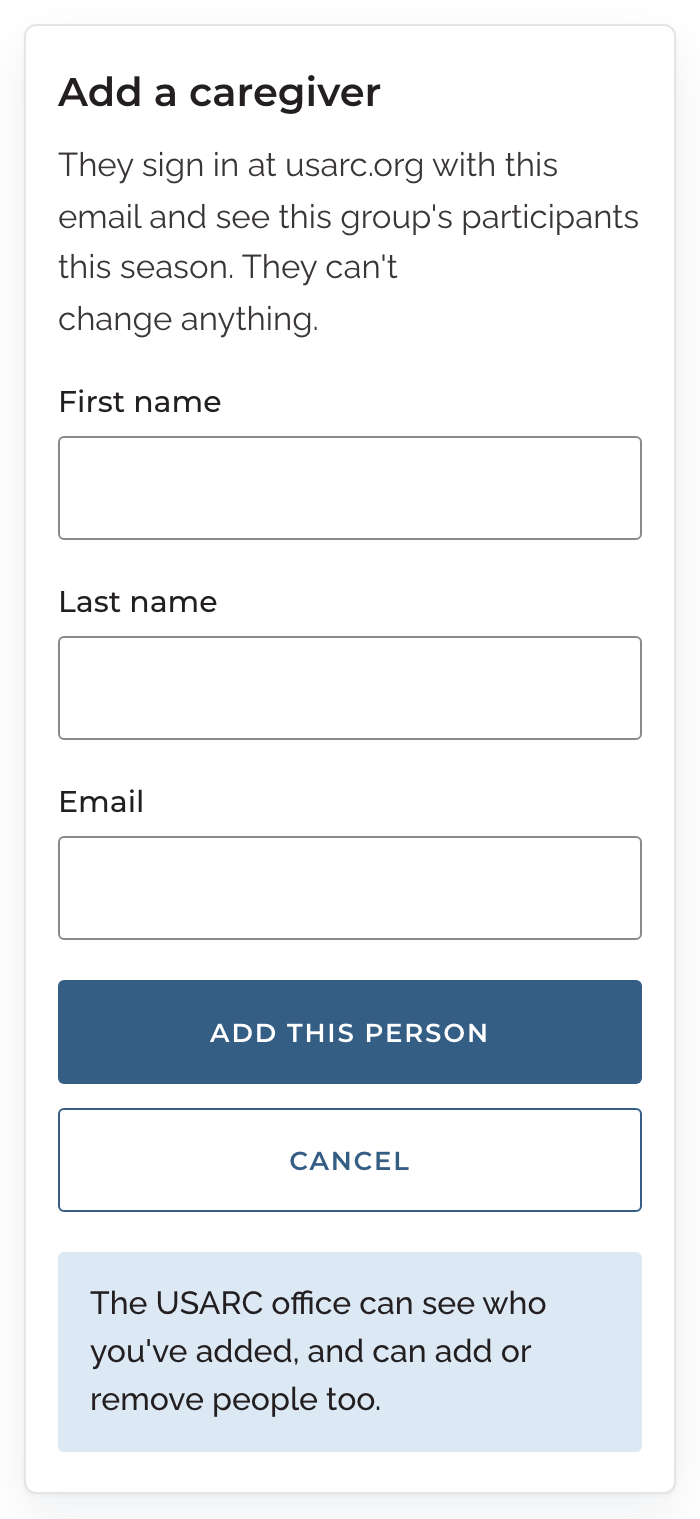
- Under the list, tap + Add a caregiver.
- Type their First name, Last name and Email, the one they’ll sign in with.
- Tap Add and their first name. It says Add this person until a name is typed.
- The page says they were added. Their access starts the first time they sign in at usarc.org with that email.
- USARC doesn’t email them, so let them know, and send them this page.
That person can already see this group means that email is on the list already. The office can see who you’ve added, and can add or remove people too.
How to remove a caregiver
Group leaders only.
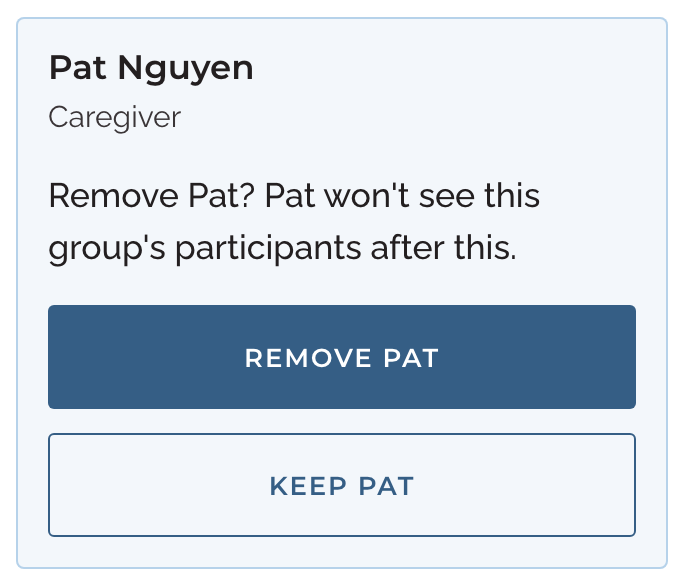
- Tap Remove beside the caregiver.
- Tap Remove and their first name to be sure. Keep and their name keeps them on the list.
- The page says they were removed. They no longer see the group’s participants.
A leader can’t be removed here. Only USARC removes a group leader.
Still stuck?
The office can help.
Call (909) 584‑0269, Monday to Friday, 9:00 AM to 5:00 PM Pacific, or contact us.
Quick fixes
- No code? Wait a minute and check your spam folder, then tap Send a new code.
- Typed the wrong email? Tap Use a different email on the code screen.
- Nothing under your email? Try the one you registered or applied with. Families often use more than one.