Help · Staff instructors
Your shifts, step by step.
Your schedule, the time clock, days off and the lesson report on your phone, with a picture of each screen.
What’s on your page
Your week, on your phone.
Sign in at usarc.org/account with your USARC email, the one the office has for you. Here’s what’s on your page, top to bottom:
- Trade request shows at the top when a coworker asks you to take or swap a day.
- Today has your hours, your lunch and the time clock.
- Your next two weeks lists every day, with Trade and Sick beside the days you work.
- Your lesson days shows your students and opens their lesson sheets.
- Practice lessons opens two lessons with made-up students, to try the sheet first.
How to read your schedule
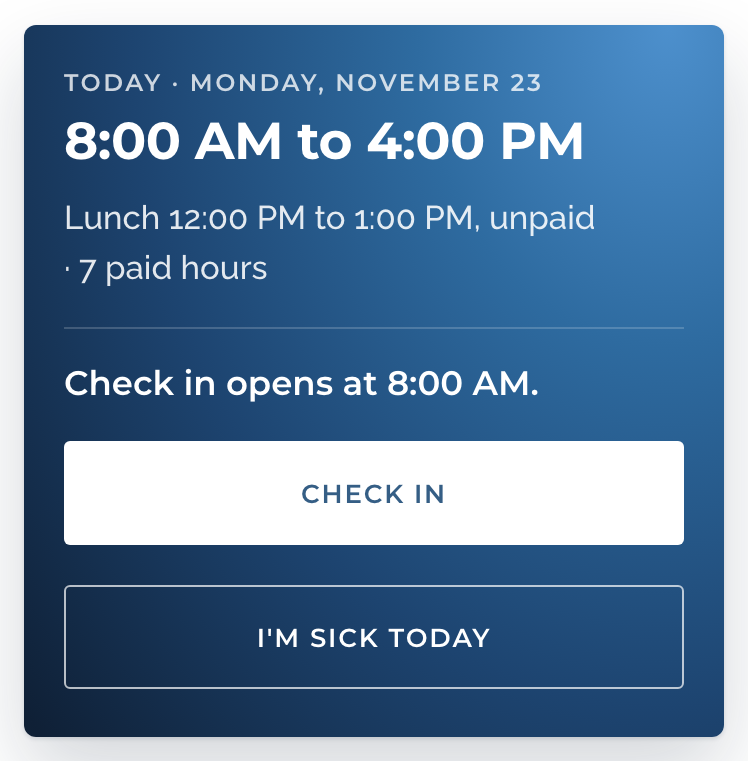
- Today, near the top, shows your hours, your lunch and how many hours are paid. On a day off it says You’re off today.
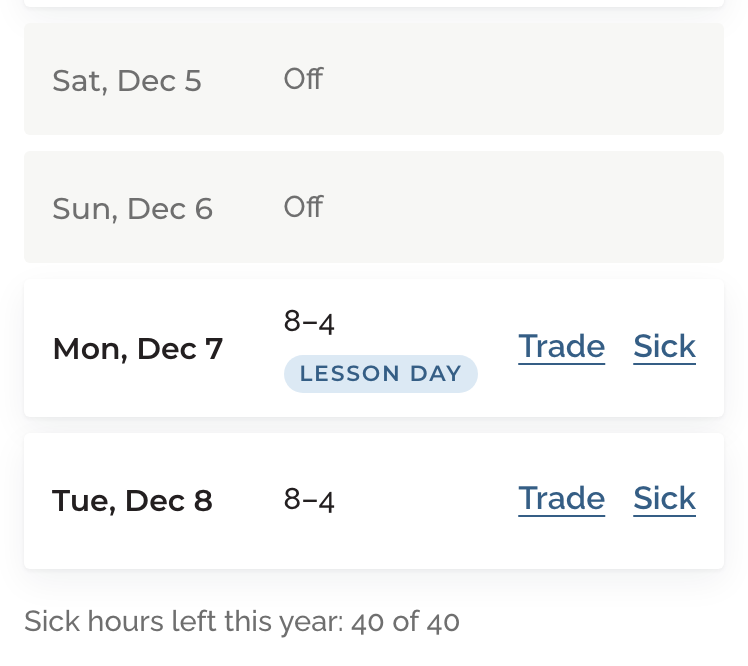
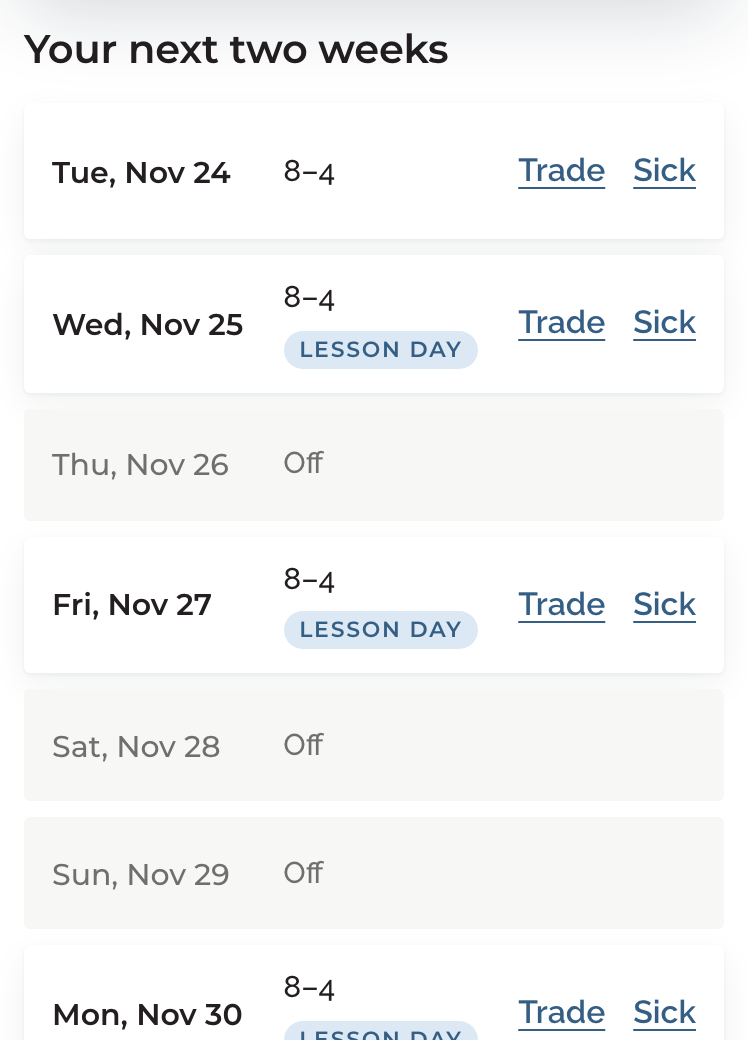
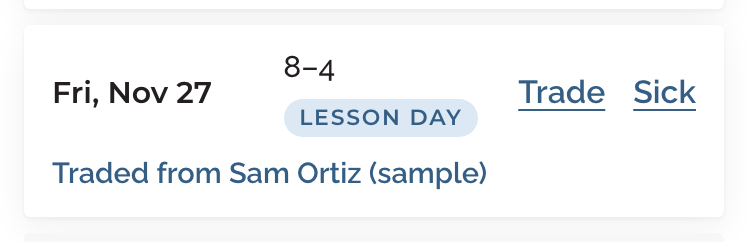
- Your next two weeks lists every day. A day you work shows its hours, like 8–4. The rest say Off or Sick.
- Lesson day marks a day USARC holds lessons. Once the office places you with students, they show under Your lesson days.
- A day you took in a trade says Traded from and your coworker’s name.
- Sick hours left this year, under the list, shows how many of your 40 are left.
Every time is Pacific. A day looks wrong? Call the office at (909) 584‑0269.
Your shift
Check in, lunch and check out.
How to check in and out
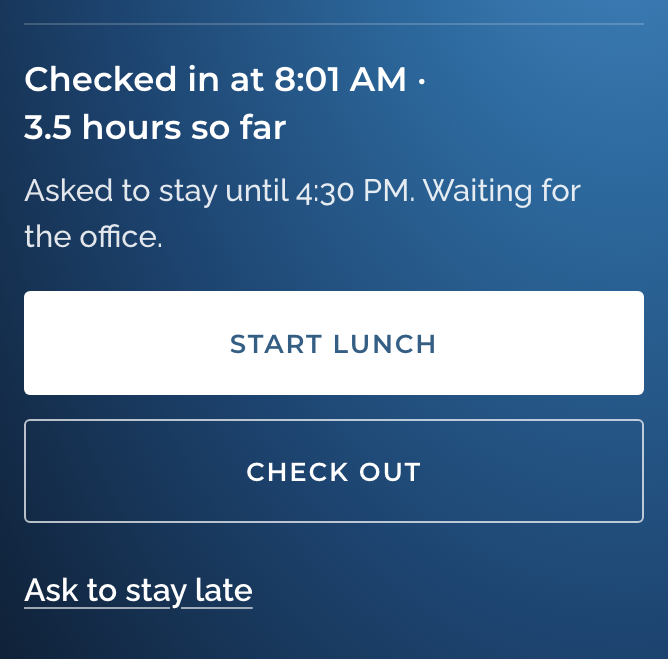
- Under Today, tap Check in. It opens at the start of your shift, not before.
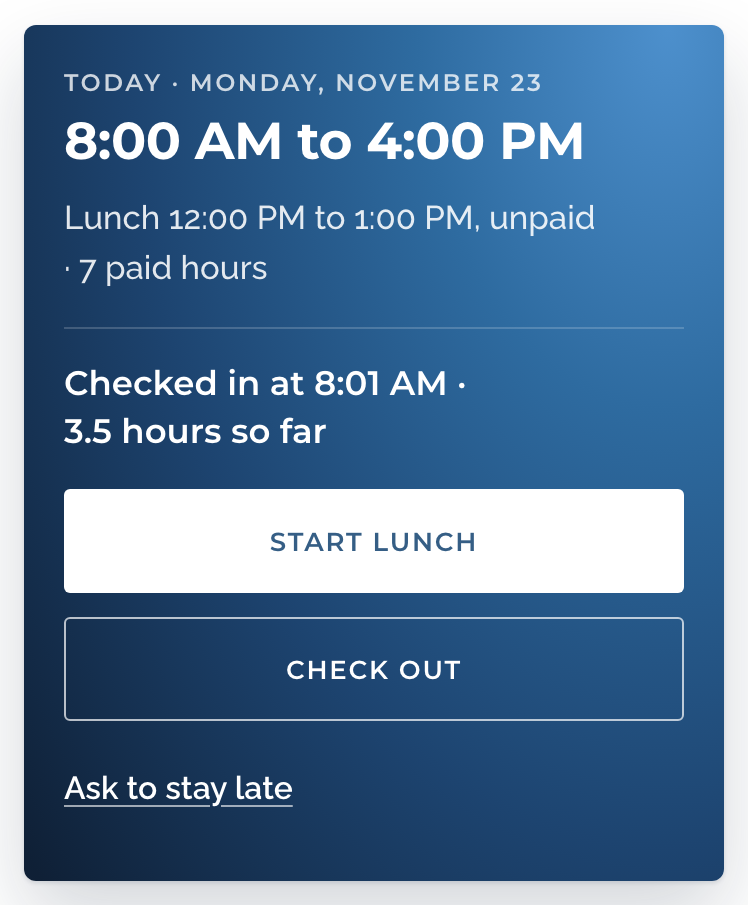
- Tap Start lunch when you go and Back from lunch when you return.
- Tap Check out when you leave.
Forget to check out, and you’re checked out at the end of your shift and the office is told.
How to ask to stay late
- Need to stay past your end time, say for a big group? Once you’re checked in, tap Ask to stay late.
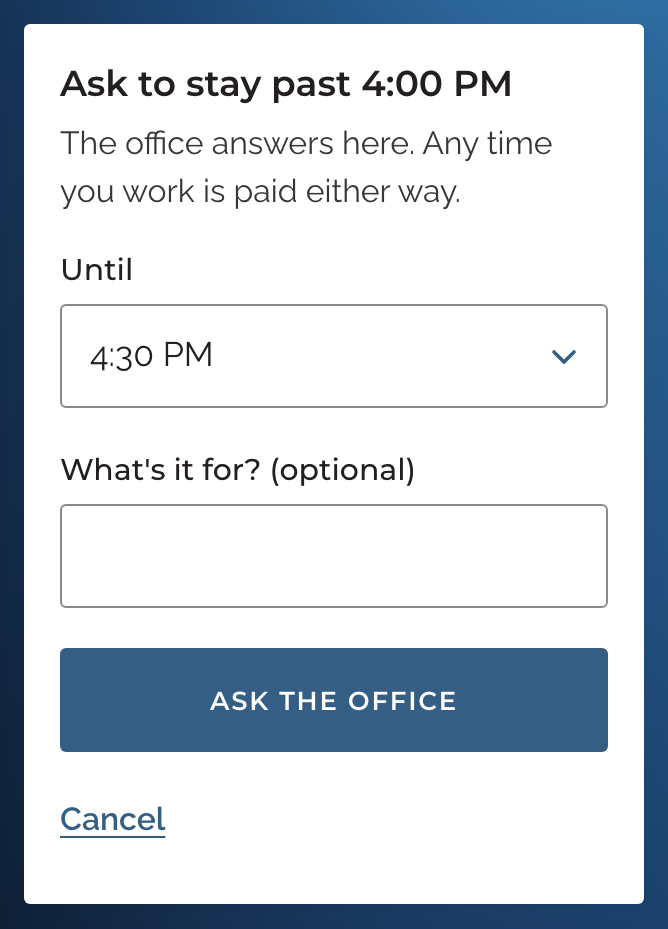
- Pick a time under Until, and say what it’s for if you like.
- Tap Ask the office. Your card says Waiting for the office until they answer.
- The office answers right there: Approved to stay until a time, or Not approved.
Any time you work is paid either way.
Days off
Call in sick or trade a day.
How to call in sick
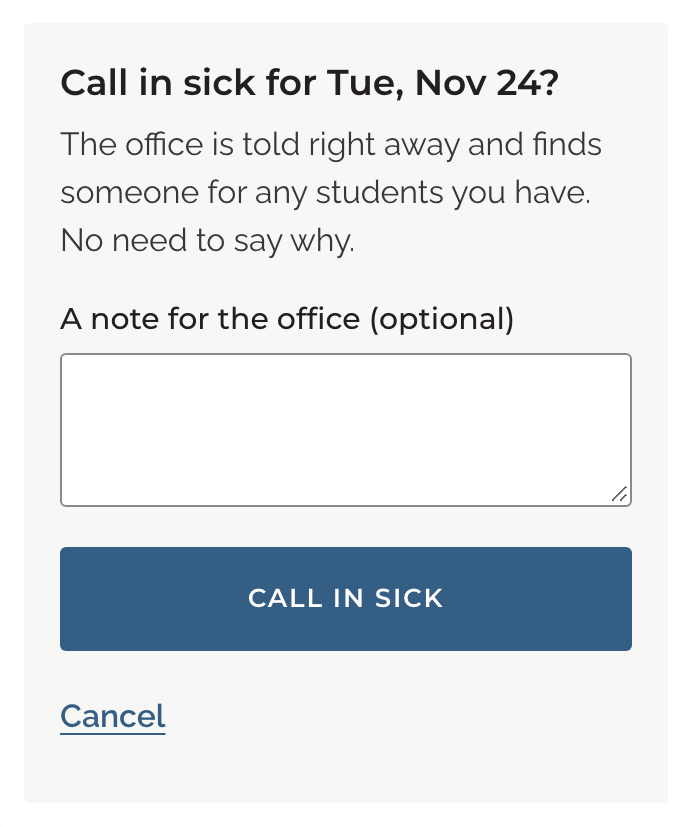
- In Your next two weeks, tap Sick next to the day. For today, tap I’m sick today.
- Add a note for the office if you like. Nobody will ask why.
- Tap Call in sick. The office is told right away and covers your students.
You get 40 sick hours each January. Sick hours left this year, at the bottom of Your next two weeks, shows how many are left.
Already checked in? Call the office instead.
How to trade a day
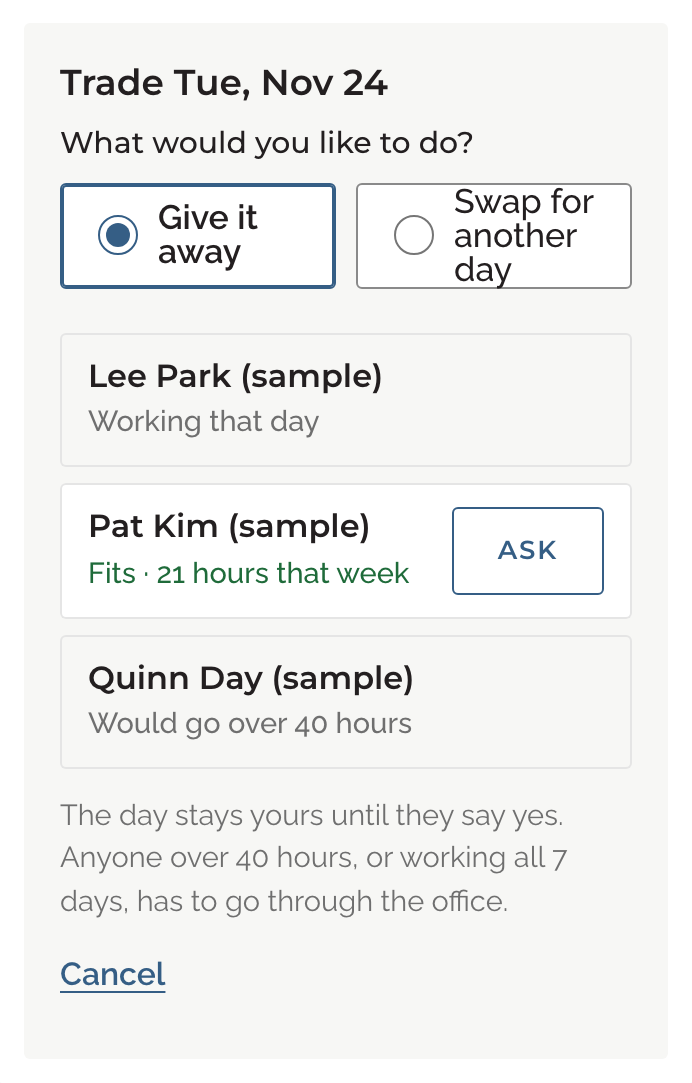
- Tap Trade next to a day you work.
- Choose Give it away or Swap for another day. For a swap, pick the day you’d work instead.
- You’ll see which coworkers it fits. Tap Ask next to one.
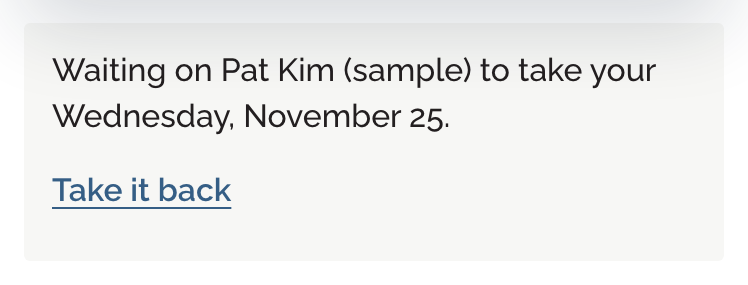
- The day stays yours until they say yes. Changed your mind? Tap Take it back.
A trade that would put anyone over 40 hours, or on all 7 days, goes through the office.
How to answer a trade someone sent you
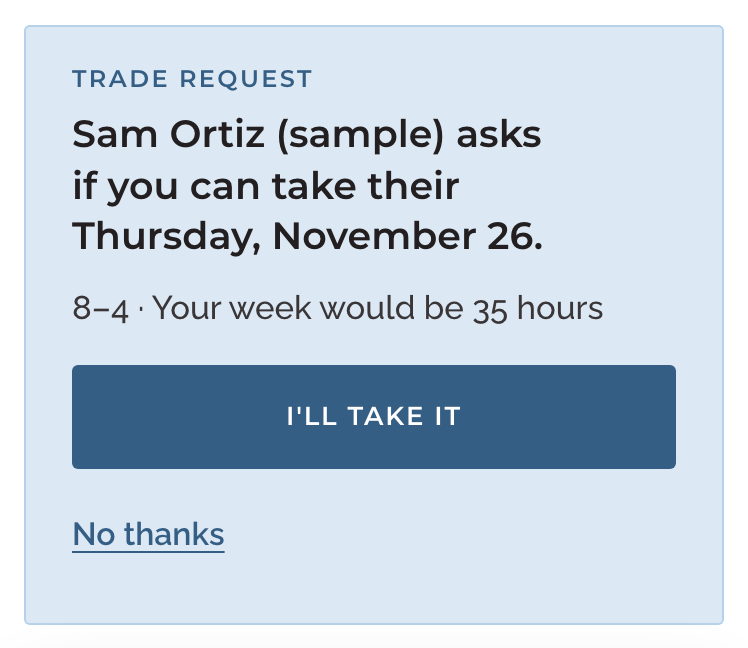
- A coworker’s ask shows at the top of your page, under Trade request.
- It says which day, its hours, and what your week would be if you take it.
- Tap I’ll take it. The day moves to your schedule, marked Traded from.
- Can’t do it? Tap No thanks.
No I’ll take it button? The request says why. Ask the office if you’d like to take it anyway. An ask goes away once that shift starts.
What the office sees
Who hears what, and when.
- Sick calls: the office gets a notice the moment you call in sick, and finds someone for your students. Your note goes to the office only.
- Trades: a trade is done the moment your coworker says yes, and the office gets a notice. Students you had that day go back to the office to place again.
- Staying late: the office sees your ask and your hours that week, and answers on your page.
- The time clock: your check-in, lunch and check-out times go on your timesheet for the office.
- Coworkers looking for someone to trade with see your name, and either your hours that week or why the day doesn’t fit you. A day you’re out sick shows only as Not available that day.
Your lesson days
Your students, placed by the office.
Staff instructors teach and write lesson reports too. Your lesson days sits under your schedule.
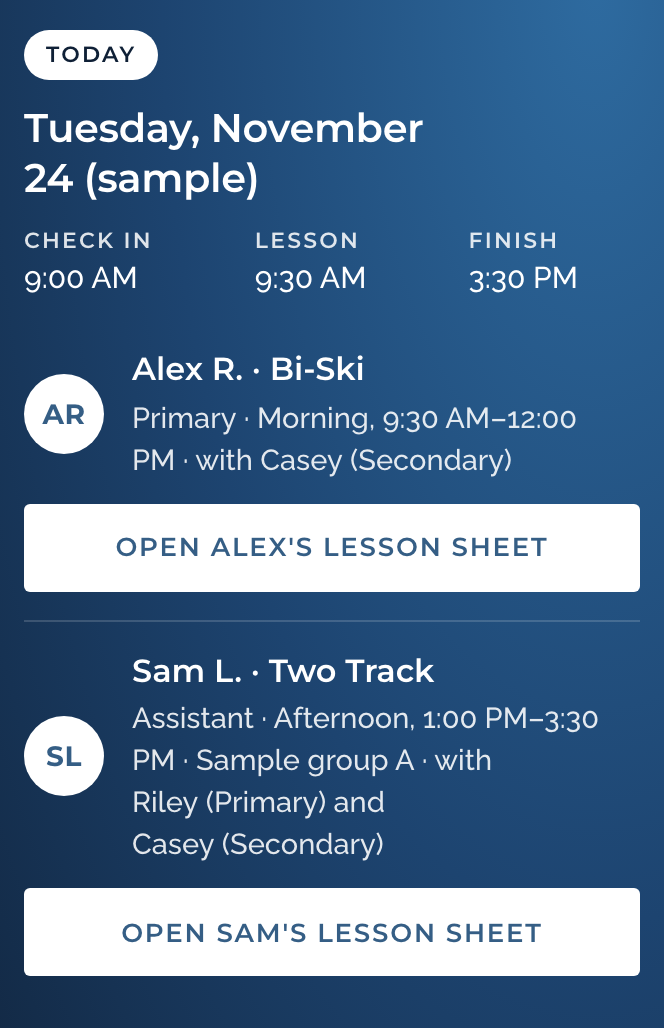
- Each card is a lesson day the office placed you on, with its check-in, lesson and finish times and your students.
- There’s nothing to sign up for or confirm. The office places you.
- On the day itself the card says Today. Open your students’ lesson sheets from there.
- No days yet? It says No lesson days with students yet. Call the office at (909) 584‑0269.
The lesson day
Your students and their report, on your phone.
Each student card shows your box. It decides what you do on the report:
- Primary: writes notes and sends the report to the office.
- Secondary: writes notes too. The Primary sends the report.
- Assistant: reads the report, counts runs and adds photos and video.
Want to try it first? Two practice lessons sit under Your lesson days. The students are made up and nothing is sent. How practice lessons work
How to open a lesson sheet
- Under Your lesson days, today’s card says Today and lists your students.
- Each student shows your box, Primary, Secondary or Assistant, and who you teach with.
- Tap Open their name’s lesson sheet. Sheets open at 5:00 PM the evening before and close at 6:00 PM on the lesson day.
- The Sheet tab has what to know before you go, past lessons, the last setup and who to call. Tap Call to call them.
USARC keeps a record each time a sheet is opened. Please don’t screenshot or share it.
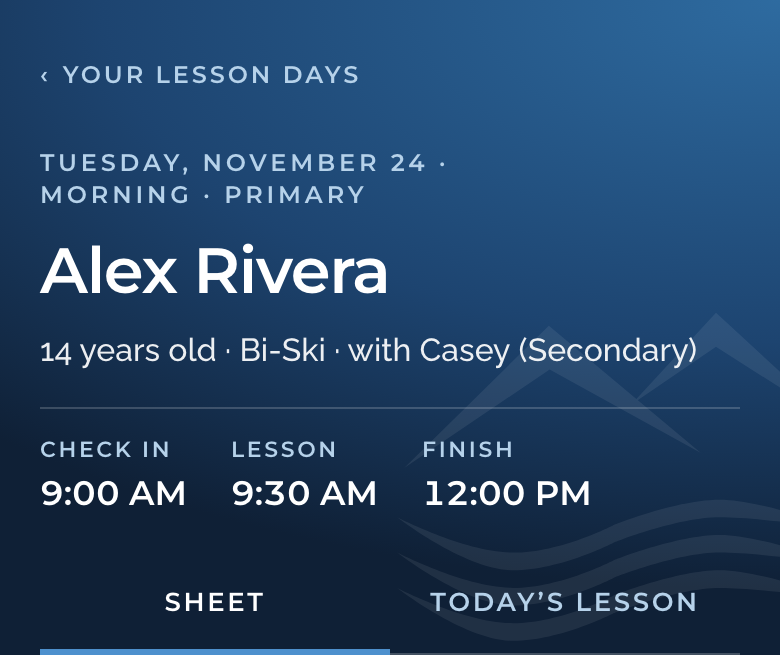
How to write notes, by talking or typing
For the Primary and the Secondary.
- Tap Today’s lesson at the top of the sheet.
- Check the Setup, filled in from the last lesson. Change what’s different and tap Save setup.
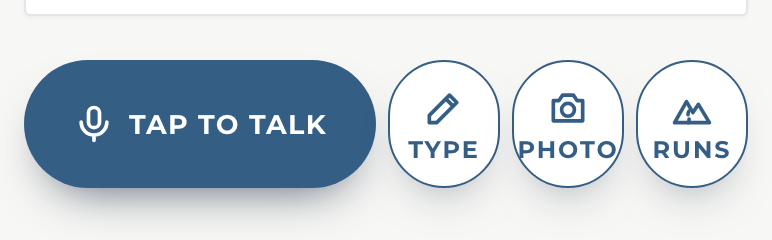
- To talk, tap Tap to talk, say your note, then tap again to stop. It turns into a tidy written note in a minute or two.
- To type, tap Type, write it and tap Save note.
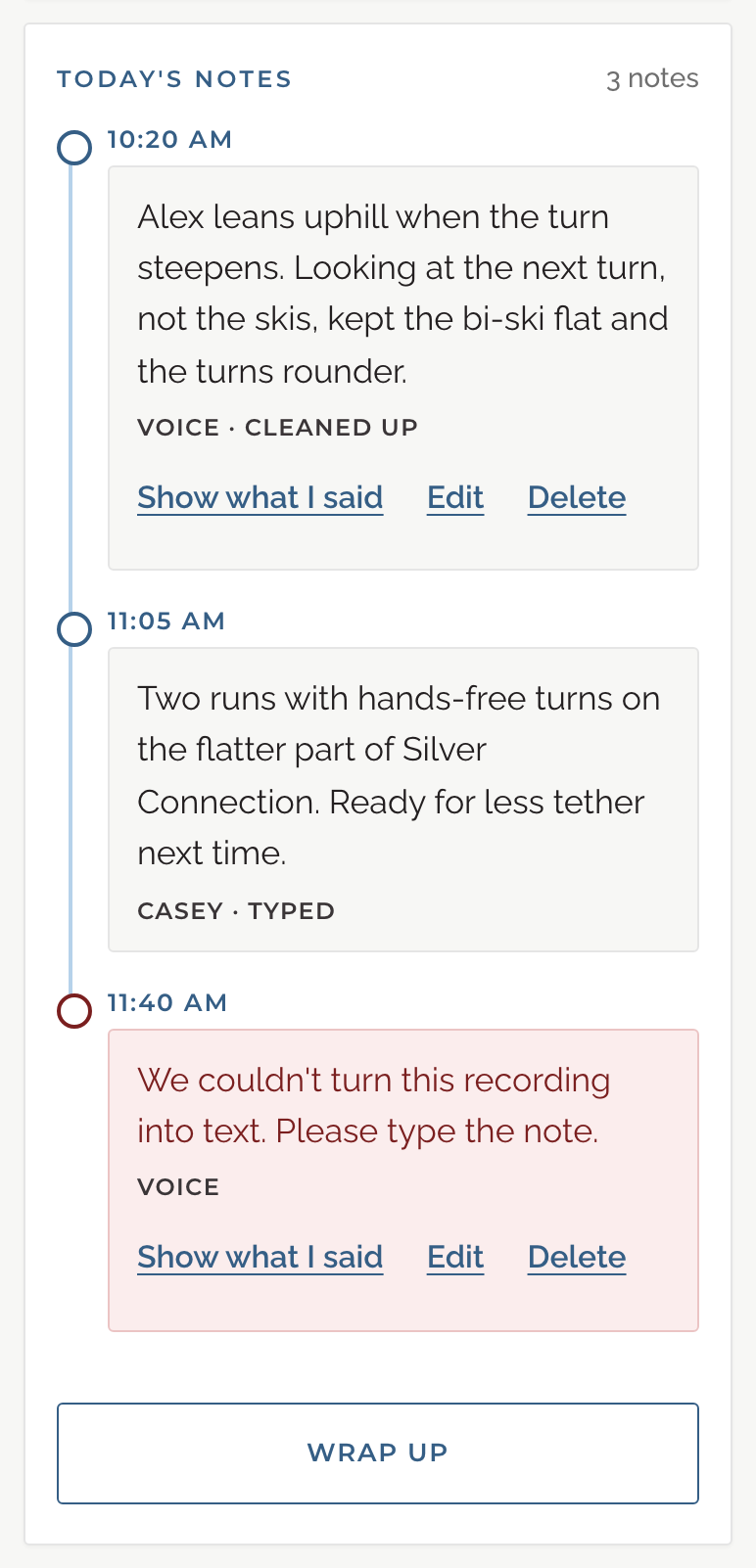
- Your notes show under Today’s notes. Tap Edit or Delete to change one.
No signal on the hill? Notes, photos and runs wait on your phone and send once it finds signal.
How to add photos and video
- Tap Photo. Your phone’s camera opens.
- Take a photo, or a video of up to 60 seconds.
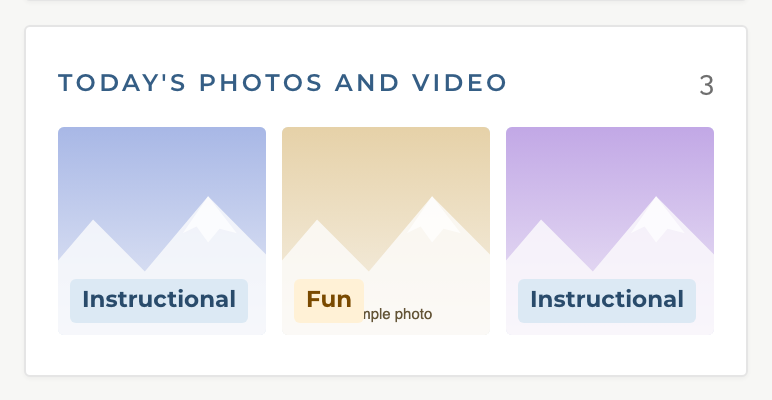
- Tap Fun or Instructional, add a caption if you like, and tap Save photo (or Save video).
- It shows under Today’s photos and video.
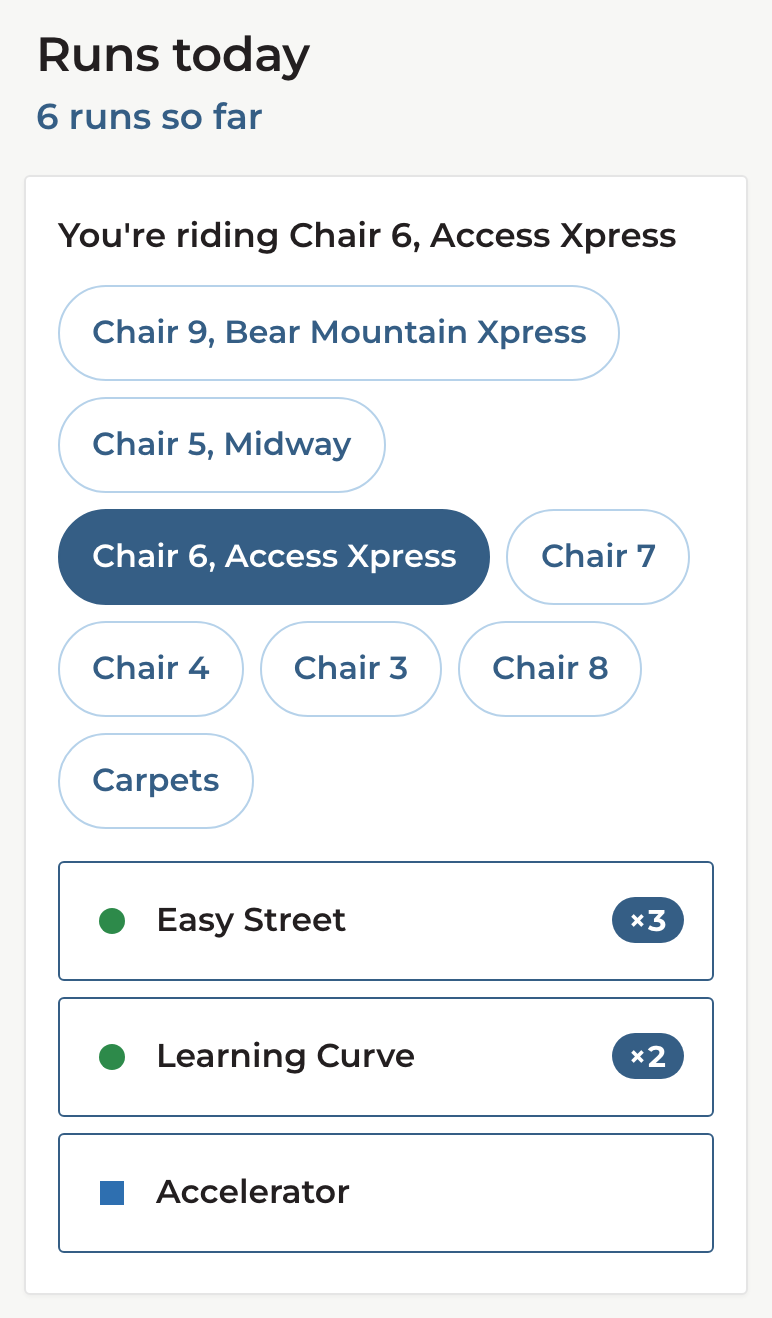
How to count runs on the run map
- Tap Runs.
- Your phone may find the chair you’re riding. If not, tap it.
- Each time you ski a run, tap its button, or tap the run on the trail map.
- Tapped one too many? Under Today’s runs, tap − beside it.
Your count fills in Trails skied and frequency on the report.
How to wrap up and send the report
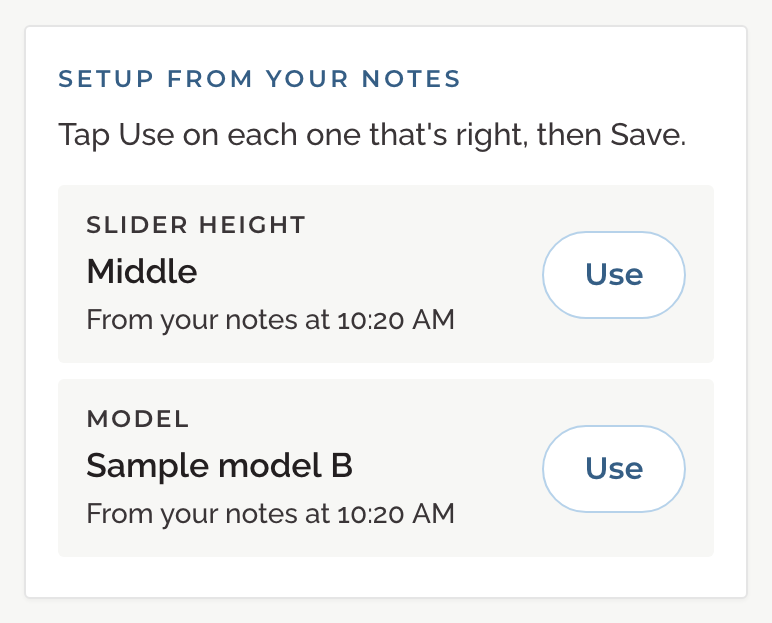
- After the lesson, tap Wrap up under Today’s notes. Your notes fill in a draft of the report.
- Read each part and fix what’s off. Tap Talk to add to a part by voice.
- If Setup from your notes shows, tap Use on each one that’s right.
- Tap Save.
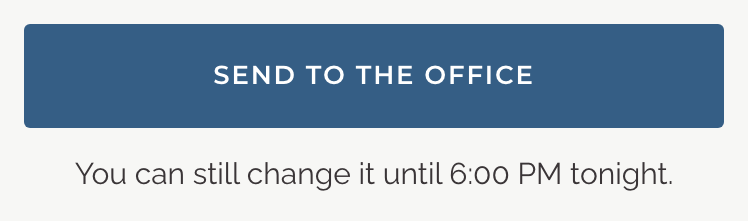
- The Primary taps Send to the office. You can still change it until 6:00 PM, then tap Send the changes.
The Assistant taps Read the report to read it. Nothing to write or send.
Still stuck?
The office can help.
Call (909) 584‑0269, Monday to Friday, 9:00 AM to 5:00 PM Pacific, or contact us.
Quick fixes
- No code? Wait a minute and check your spam folder, then tap Send a new code.
- Typed the wrong email? Tap Use a different email on the code screen.
- Nothing under your email? Try the one you registered or applied with. Families often use more than one.